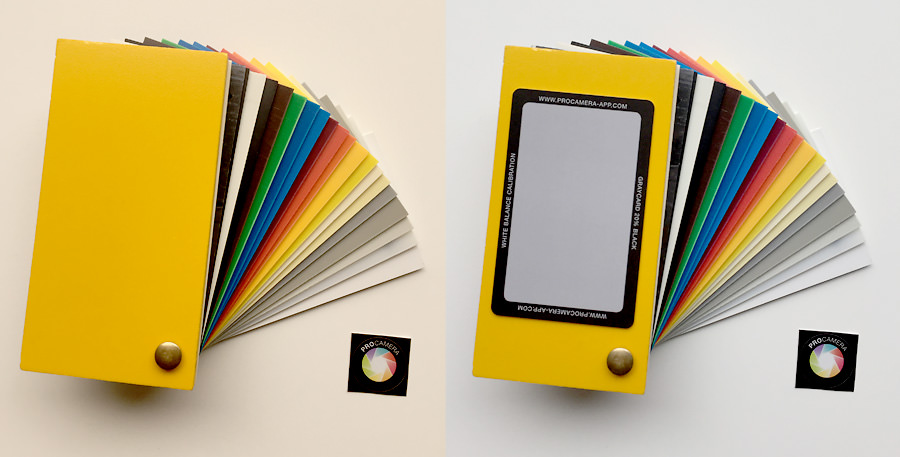
Gray Card Calibration with ProCamera

Using a gray card is a fast and easy way to set an accurate white balance. A proper white balance eliminates unwanted color casts, so that, for example, skin tones are rendered more naturally and white objects remain a true white in your photos.
ProCamera has a built-in manual white balance feature, as well as an additional method for achieving white balance through what is called ‘gray card’ calibration. For this, the neutral tone of a gray card serves as the reference point for this calibration. It is important that the gray card is positioned in the same light as your actual subject. Once you have calibrated your white balance, which is performed by a simple long tap on the AWB button, the metered value is locked for continuous shooting until you tap the WB button.
Furthermore, a gray card can be used to adjust the white balance in post-processing software. By having the gray card visible in one of your shots, you will later be able to select a point or pixel on the gray card in your image editing software in order to set a custom white balance.

How to calibrate the camera with a gray card?
- Enable WB control in control panel (icon with the three lines, bottom right). A button “AWB” appears on screen.
- Put the gray card in front of the camera covering more than 50% of the viewfinder.
- Make sure the gray card receives same or similar light as the subject you want to take a photo of.
- Long press the “AWB” button. A confirmation pop-up shows up. The white balance is now calibrated to the neutral gray color.
- All photos taken after the calibration will have a consistent white balance value.
- Tap the “WB” button to unlock and activate automatic white balance.

Fields of Applications
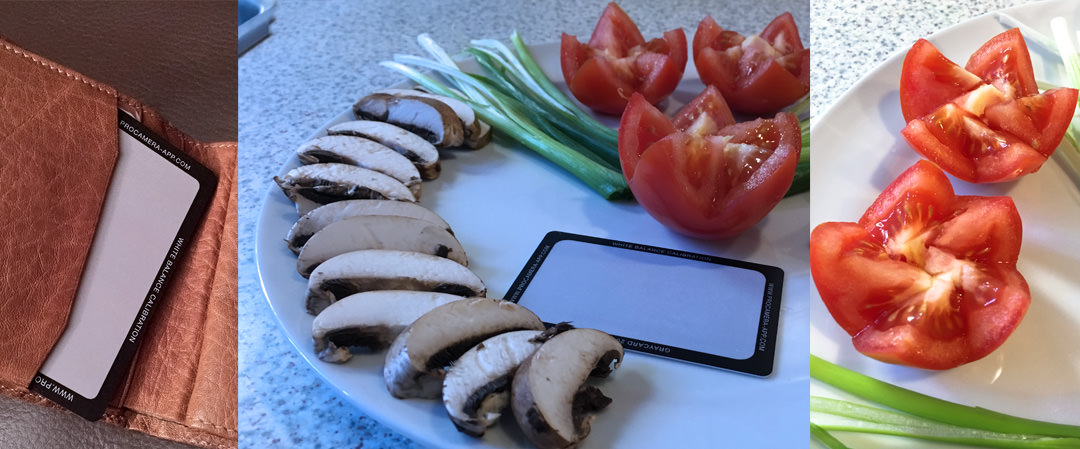
Your iPhone has an auto white balance setting, so you definitely won’t need a grey card for every single photo you take. However, there are many situations where you really care about getting the colors correct in camera. Getting the colors “correct” doesn’t necessarily mean more “pretty” – an intentional color cast may also enhance the effect of an image.