
iOS 14 Trick: Back Tap iPhone to Launch ProCamera
Launch ProCamera by simply tapping the back of your iPhone
One of our favorite features in iOS 14 is the brand new ‘back tap’ that allows you to perform a custom action by double or triple tapping the back of your device
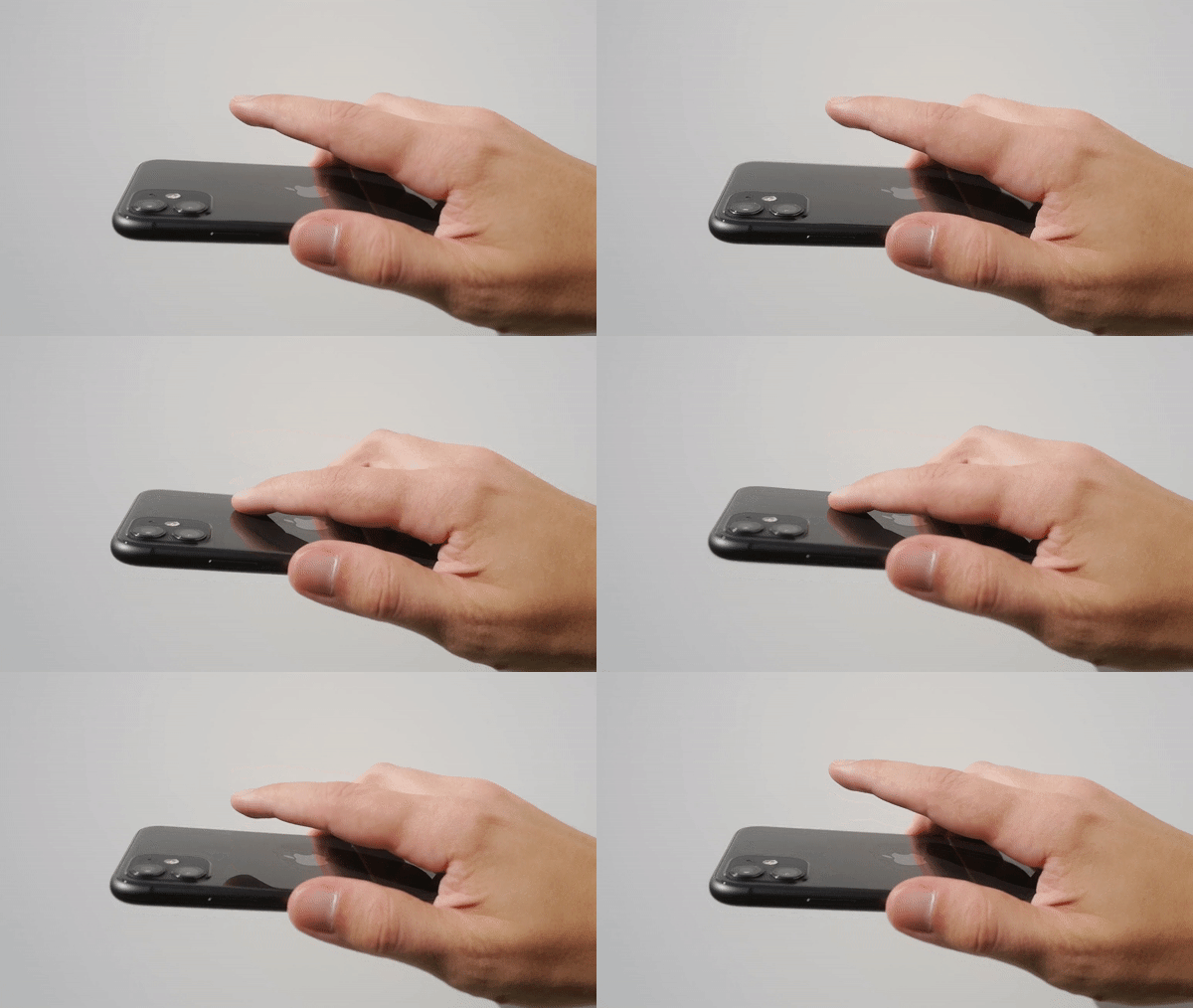
The new back tap accessibility gesture is probably not the most talked about feature during Apple’s current iOS 14 release, but it might just be one of the most useful! There are some iOS default actions – like taking a screenshot or opening the Notification Center – but in this article we want to show you how to add ProCamera to the supported custom shortcuts.
All you need is an iPhone 8 or later equipped with the new iOS 14.
The initial set up is a two step process:
- Adding a ProCamera shortcut\
- Assigning this shortcut to the double or triple back tap
1. Adding a ProCamera shortcut
There are two ways to add the desired ProCamera shortcut action to your device: Alternative 1 makes use of preset ProCamera actions – if the Shortcuts app isn’t suggesting those actions simply jump to Alternative 2 below.
ALTERNATIVE 1
As preparation, open ProCamera and switch to the camera mode you later want to launch via back tap gesture.
a) After that, switch to the free Shortcuts app, which is developed by Apple and most probably already installed on your iPhone
b) Tap the “+” button in the top right corner to add a new shortcut
c) Tap “Add Action” and search for “ProCamera”
d) Tap the ProCamera icon and select the desired action; e.g. “Take Photo” which will start ProCamera in Photo mode. You should see an action for the ProCamera camera mode you just used before switching to Shortcuts app.
e) Tap “…” to enter a name for your new shortcut – like “ProCamera Photo Mode” – and then tap “done”.
ALTERNATIVE 2
In case the iOS Shortcuts app isn’t presenting any suggestions for preset ProCamera actions, you can easily create them manually:
a) Tap the “+” button in the top right corner of the Shortcuts app
b) Tap “Add Action” > “Web” > “Safari: Open URLs”
c) Type in “procamera://photo” as internet address. This won’t load an actual website, but open ProCamera’s Photo mode. You can replace “photo” in the address with any other camera mode name (video, portrait, hdr, selfie, bothie, lowlight, lowlightplus, scan) to directly launch ProCamera in that mode.
d) Tap “…” to enter a name for your new shortcut.
Congratulations, you just created your first ProCamera shortcut!
Now you only need to assign the shortcut to the new back tap gesture.
2. Assigning the ProCamera shortcut to the back tap
Your ProCamera action will now be available in the accessibility settings:
a) Open the iOS “Settings” app on your iPhone
b) Go to: Accessibility > Touch > Back Tap
c) Choose either the Double or Triple tap and select your custom ProCamera action under “Shortcuts” (it will show the exact same name you entered in step 1e)
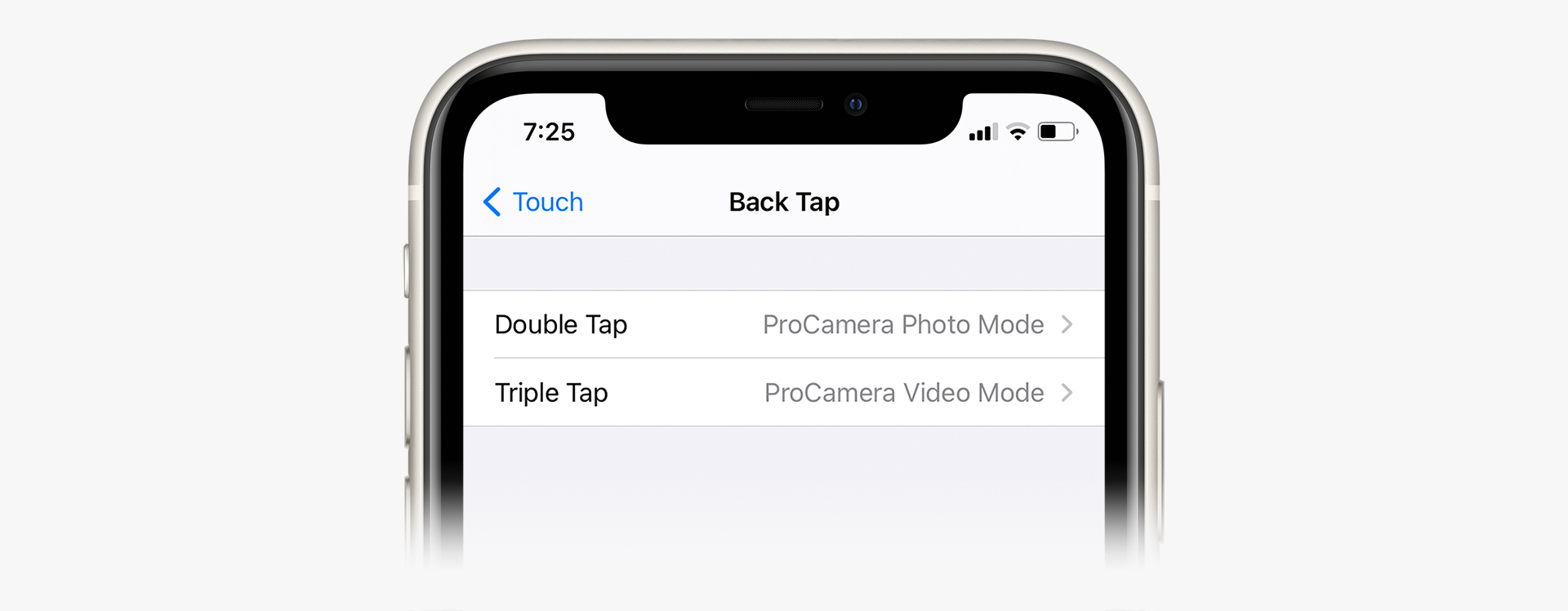
You’re all set!
Now you can back tap your iPhone to quickly launch ProCamera from other apps, your home screen, and even the lock screen!
Want the option to quickly launch ProCamera in another camera mode, too? No problem! Just create an additional shortcut for the desired second camera mode following the steps above. After that, assign one action to the double back tap and the other to the triple back tap.