
Manual Focus, Manual HDR – Even More Features and Optimizations for Mobile Photography
Manual Focus, HDR with Manual Bracketing
Even more functions for manual control of the iPhone camera
As the first update following our epic ProCamera 8 release, version 6.1 offers more than just usual fine-tuning and optimization for iPhones 6 and 6 Plus
Manual Focus
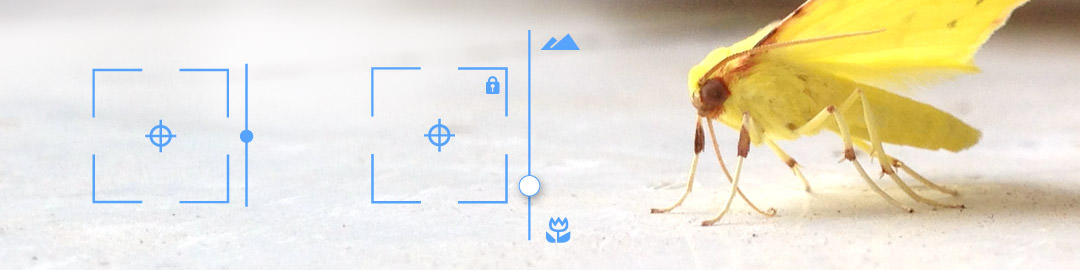
One long press to set focus manually – Manual Focus in ProCamera is convenient and easy to use. … read more
HDR optimized for iPhone 6 and 6 Plus and new Manual Bracketing feature
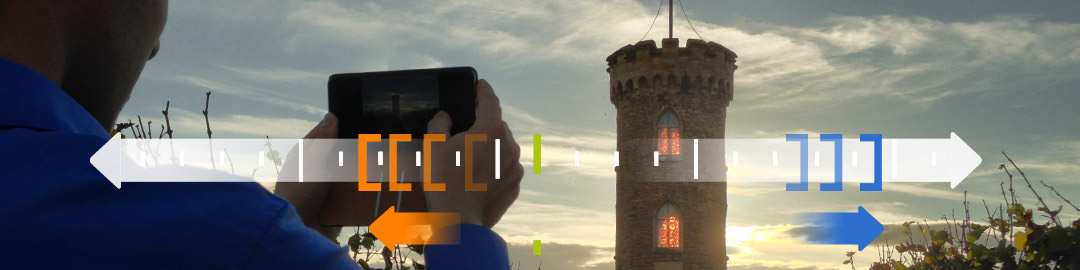
The in-app purchase „vividHDR in ProCamera“ is now optimized for iPhone 6 and 6 Plus and performs better in low-light situations. Additionally, HDR experts can set all three exposure values of the bracketing. … read more
UI adapted to New Screen Sizes
What else is new in PROCAMERA 8 v6.1
Gray Card Calibration
A long press on the White Balance (AWB or WB) performs a gray card calibration for the most true-to-life colors in your photos, even in situations with very tricky ambient light.
Slow Motion Video Player
Play back your action videos in slow motion. You can even adjust the pitch of the audio in your video for realistic playback or creative sound effects.
Histogram³
Choose your preferred Histogram style from three display options by tapping on the Histogram icon in the control panel.
Minor Usability Improvement
Long-press on the flash icon to activate Steady Light and to reveal the torch intensity slider. A simple tap on the torch icon will turn off Steady Light. Long-press on the torch icon in order to toggle the visibility of the torch slider.
Define your Default Text for Sharing to Facebook and Twitter
Your website or preferred tags will be added automatically.
Bug fixes & plenty of refinements
As with all new iOS releases and updates if you have any suggestions or find a bug then please let us know via the in-app support or email us at [email protected]. We can’t wait to see what you create with the new ProCamera 8!
Manual Focus
Manual Focus in PROCAMERA 8 is convenient and easy to use. One long press is all you need for activation.
Switch it on and Try it out
Setting Focus and Exposure can be customized according to your preferences. By default, the additional features are switched off. Activate Manual Focus and customize exposure control in Settings > Focus and Exposure. Each option is described in detail.
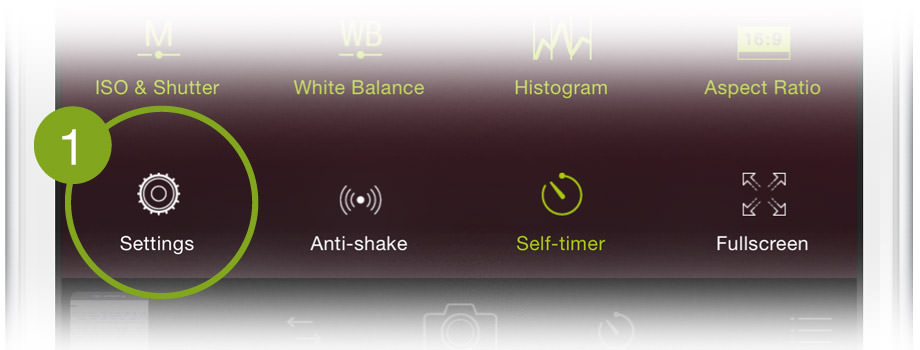
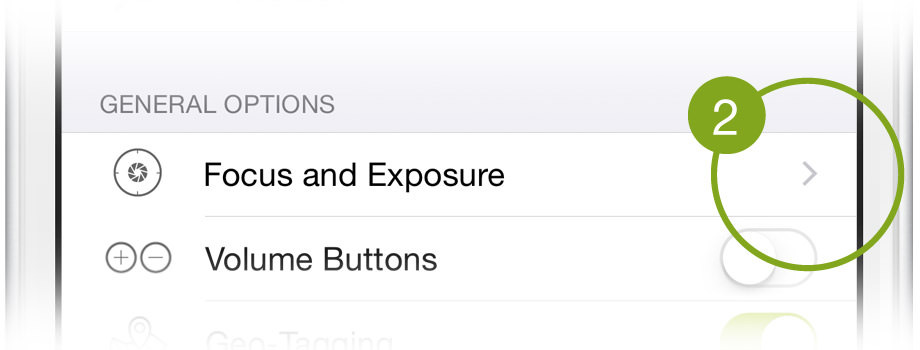
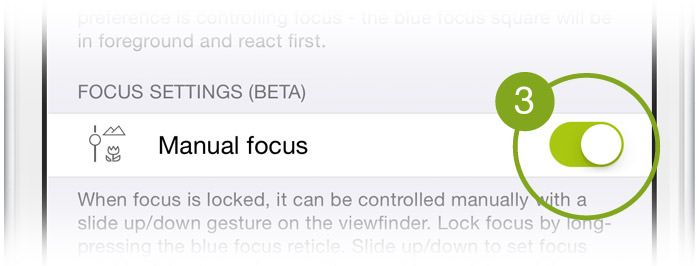
As before, focus is locked by performing a long press on the blue focus square. Additionally, Manual Focus Control and Lens Position Indicator can be (de)activated independently of one another.
Once these settings are activated, the small slider at the side of the blue focus reticle shows the current lens position, from macro (bottom) to infinity (top). The point on the slider stops moving when focus is set.
Steps to set focus manually
( 1 ) Set and lock the focus reticle.
( 2 ) Slide your finger up/down (anywhere on the screen). Optionally, keep your finger on the screen and slide horizontally (left/right) to fine-tune focus.
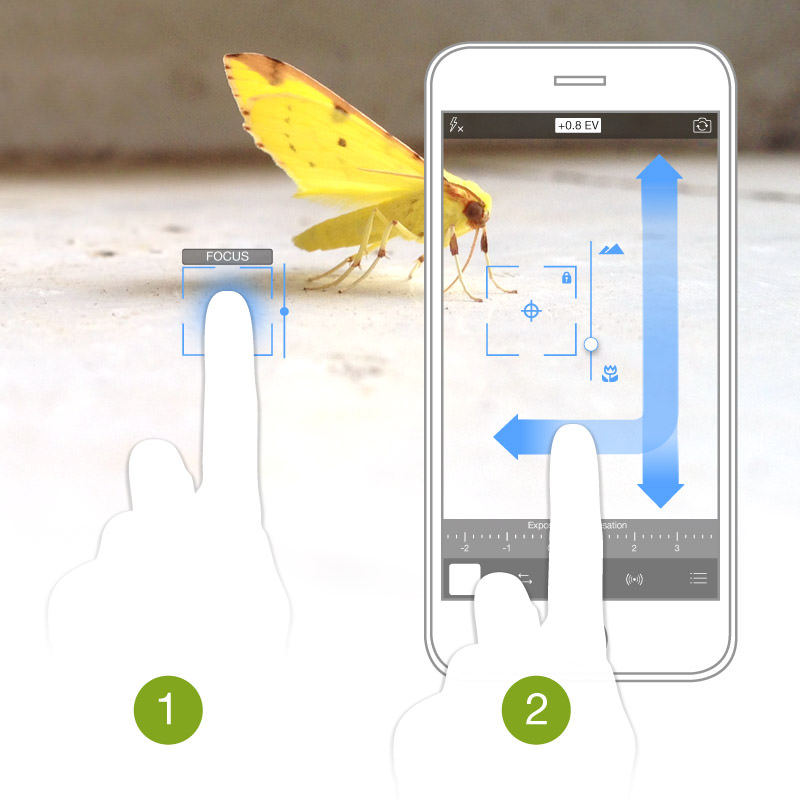
This is particularly useful in cases when automatic focusing fails, such as with moving objects or areas with insufficient contrast in the subject. A specific scenario might be one in which you would like to choose to focus on the raindrops on a window or the scene beyond the window.
Public Beta
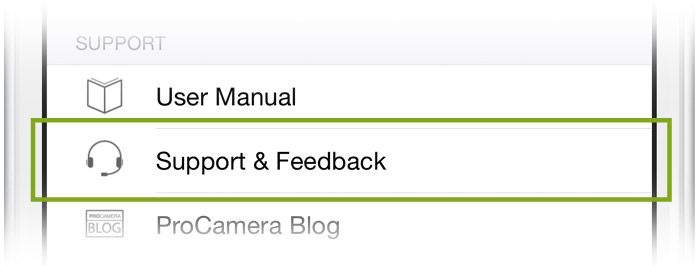
Your feedback on this feature is important for us to further improve the app. We have loads of exciting ideas already planned, and your valued feedback on how manual focus works in PROCAMERA will be of great help. So please let us know what you think. Do you like it, find it useful, have some suggestions? Please write to us via Settings > Support & Feedback, or via www.procamera-app.com. PROCAMERA and its millions of users will benefit from your feedback. (Thanks!)”
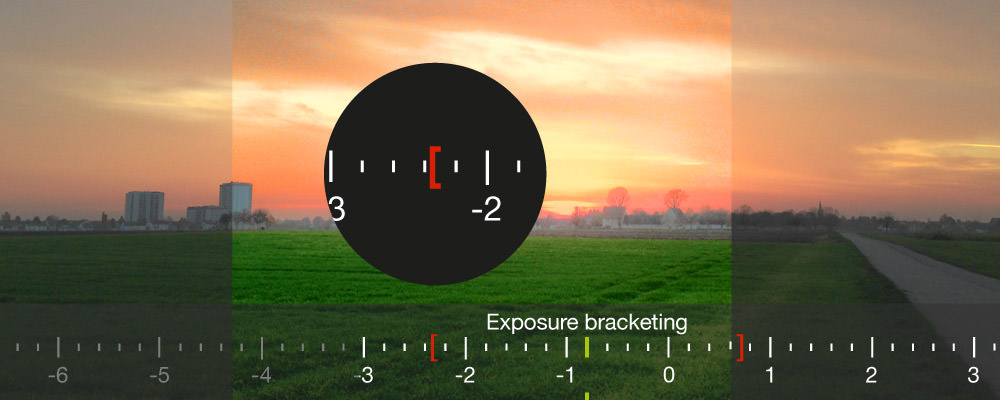
HDR with Manual Bracketing
With PROCAMERA 8 Version 6.1. you can either use the automatic scene analysis – which is one important component that accounts for the high quality you get with vividHDR – or you can choose to set all exposure levels manually. There are two modes for the latter: MEB und AMEB.
Note: When experimenting with manual exposure bracketing, you may find that it’s hard to achieve satisfying results. This is why we recommend AUTO mode.
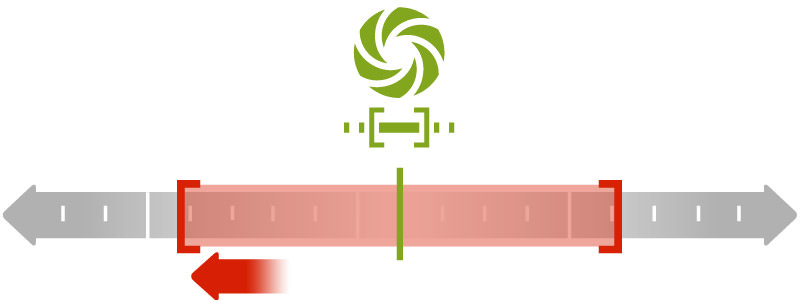
MEB (Manual Exposure Bracketing)
This mode lets you set the range of under/over-exposure symmetrically – similar to many DSLR cameras – and allows you to reduce or extend the range of contrast and color.
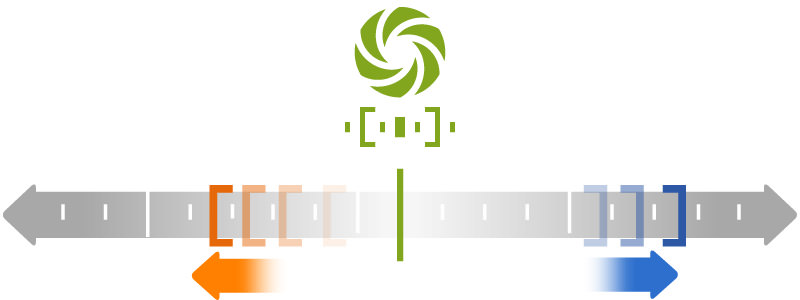
AMEB (Advanced Manual Exposure Bracketing)
In this mode, all three exposure levels can be determined independently. AMEB is an interesting tool for artistic photography and special HDR effects. We are curious to see what you come up with.