
ProCamera and new iPhone iOS 6 Privacy Settings – Turning on Photo Library Access
Hi everyone, my name is Misho Baranovic and I’m very excited to take over from Dan Butterfield as the ProCamera blog manager.
I’m going to focus on making the blog not only a great resource for photographers and developers but also a place to showcase all the incredibly talented ProCamera shooters from all around the world.
So let’s get right to it…
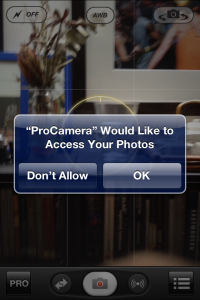
With iOS 6 released yesterday, we’ve heard that a few users, when shooting with ProCamera, are having trouble saving photos to the camera roll/photo library. This is related to Apple’s beefed up privacy protections and is an easy fix.
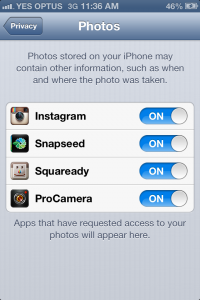
Here is a quick step by step to allow ProCamera to access your photos on iOS 6.
| Step 1 | Step 2 | Step 3 |
|---|---|---|
|
 |
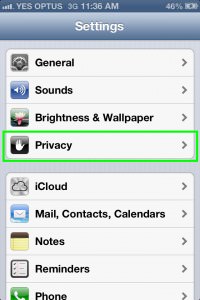 |
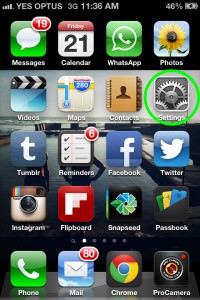
| The above notification should pop up the first time you launch ProCamera in iOS 6.Pressing ‘OK’ lets ProCamera save photos to your iPhone. If you press ‘Don’t Allow’, ProCamera will be unable to save photos to your iPhone camera roll. | If you do click ‘Don’t Allow’, or ProCamera doesn’t give you this notification, you can turn on photo access manually.First, find and launch the Settings app (circled). | Scroll down and select the Privacy menu. |
| Step 4 | Step 5 | |
 |
 |
|
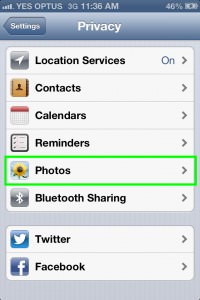
| Click on the Photos menu | Here you can see different photo apps and their access status. If ProCamera is set to Off, then turn it On. That’s all there is to it. |
If you have any questions about the above tutorial or any questions using ProCamera on the new iOS 6 then please let me know in the comments below.
Cheers,
Misho