
vividHDR in ProCamera: First 5-picture processing
What is HDR imaging?
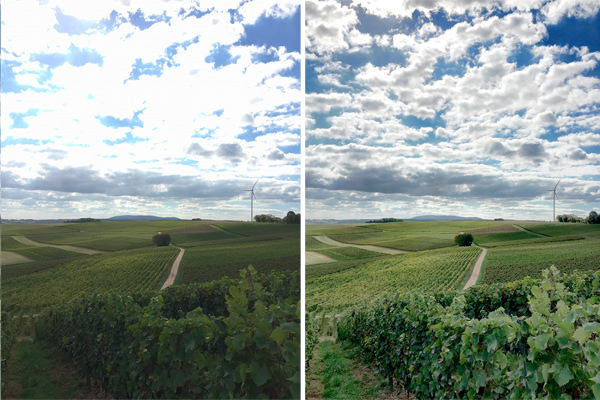
In a nutshell: HDR processing enables you to take photos with a greater dynamic range which translates into capturing more details in highlights and shadows. Click and drag the white slider in the photos below to see how much more detail you are able to capture with HDR imaging.
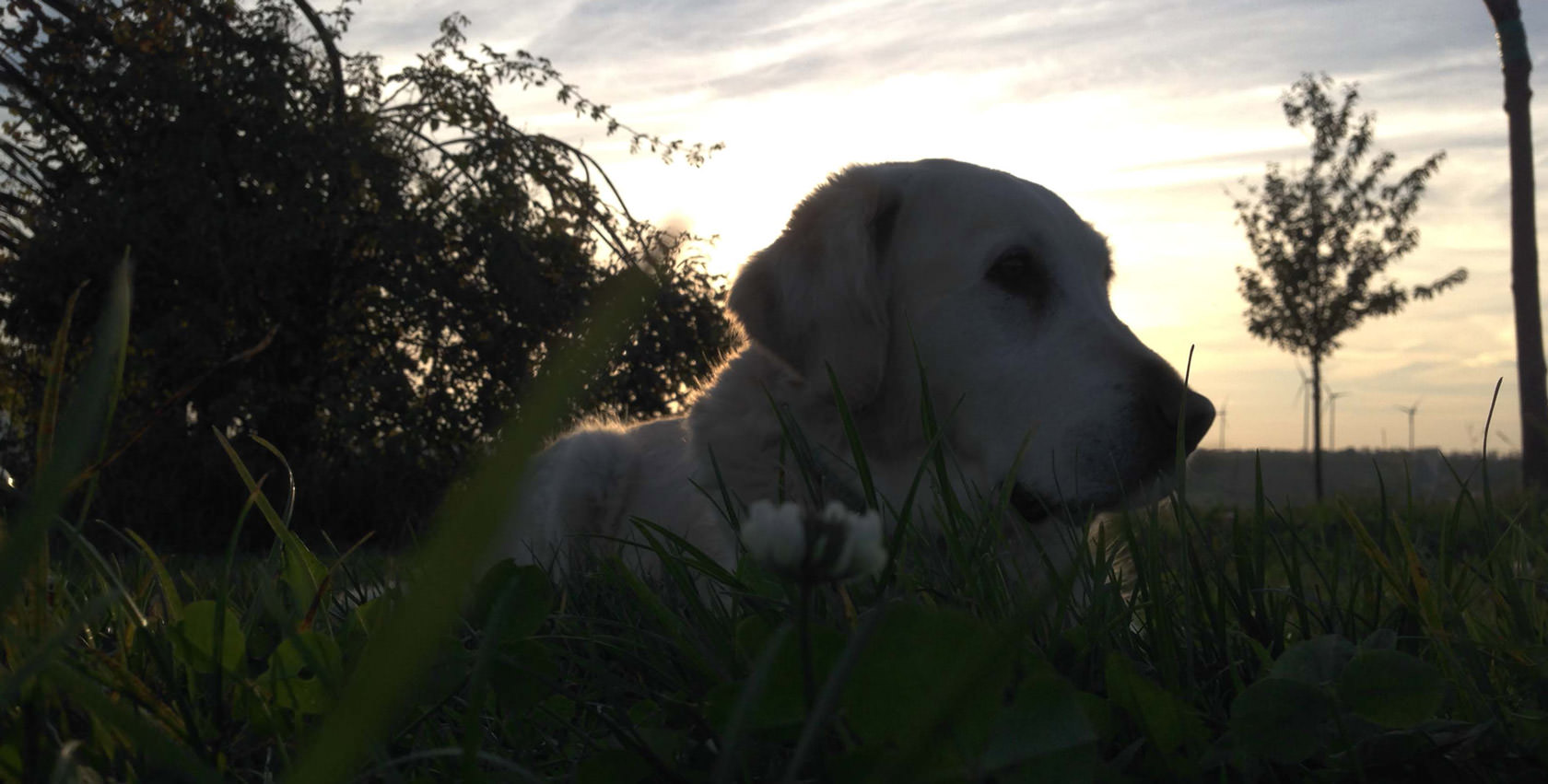 Standard Photo
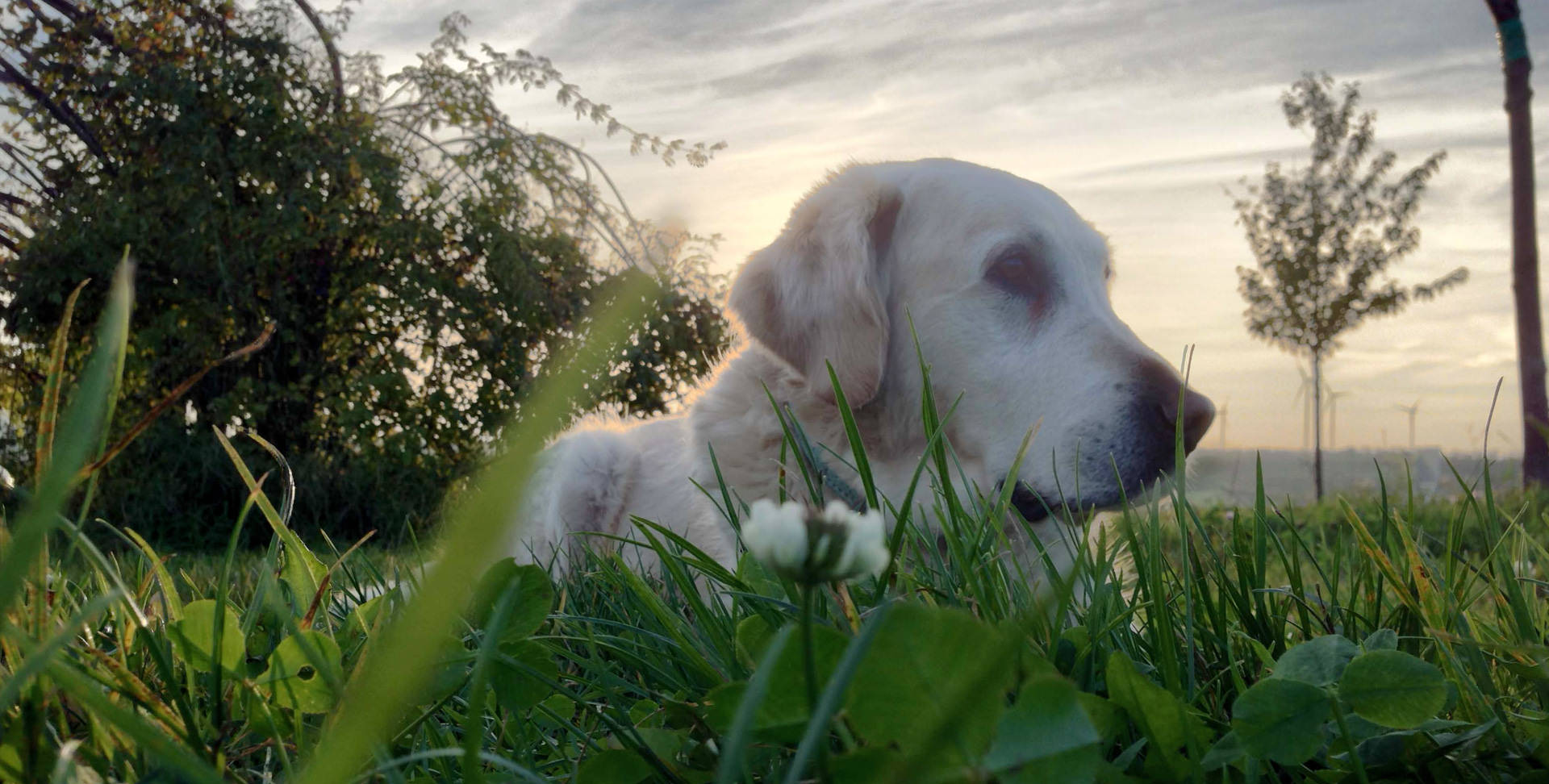 HDR Photo
To be precise: Compared to conventional photos, HDR images contain a greater range of light that is present in real-world scenes. Three or five photos are captured at different exposure levels, which are then combined into one with a higher level of color precision aka higher dynamic range. A standard screen has a limited dynamic range that inadequately displays the full range of light intensities found in an HDR image. To address this issue, the contrast range is compressed with a technology called tone-mapping, so the photo can be displayed on a standard non-HDR screen.
What is the new 5-Picture HDR all about?
As mentioned before, the HDR capture process uses multiple photos, shot with different exposure times, and combines them into an image with a higher dynamic range. With our technology partner Ittiam Systems, the company behind vividHDR, we are proud to introduce the first 5-picture HDR for iOS in our latest version (9.3) of ProCamera. Increasing the number of photos from 3 to 5 can boost the amount of detail seen in the photo – especially in extreme lighting situations.
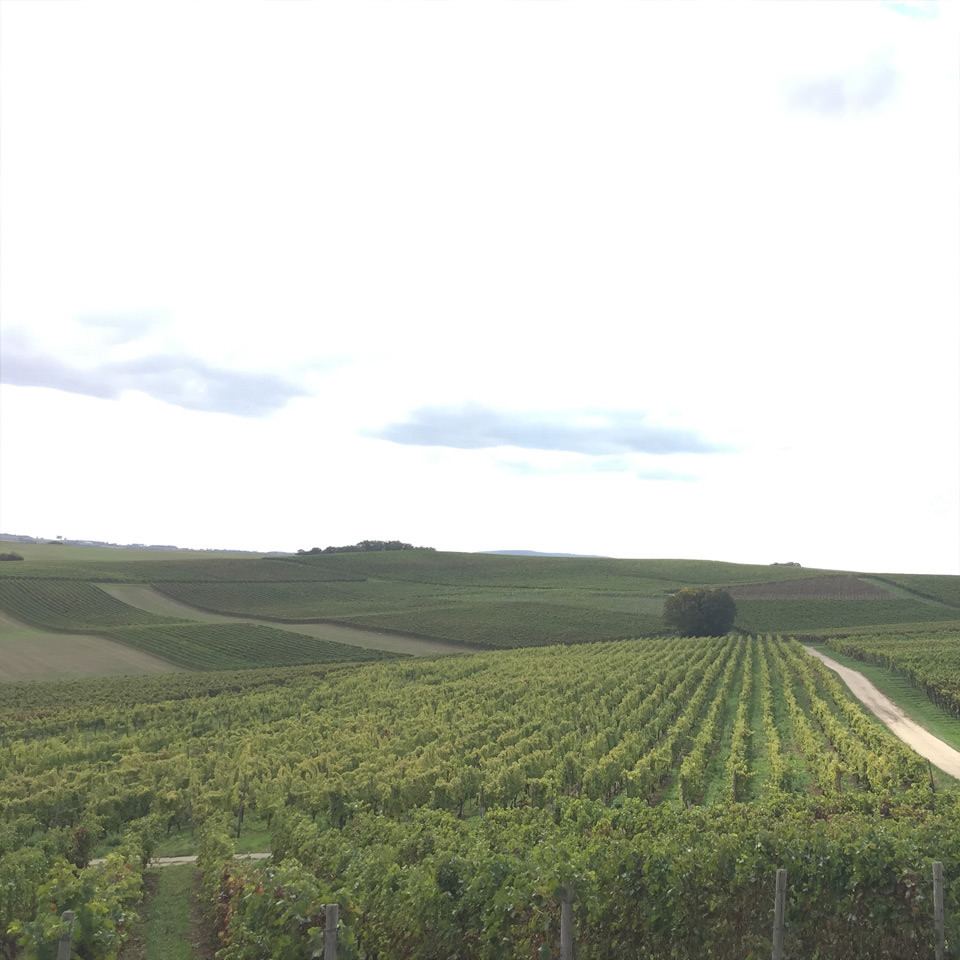 Before
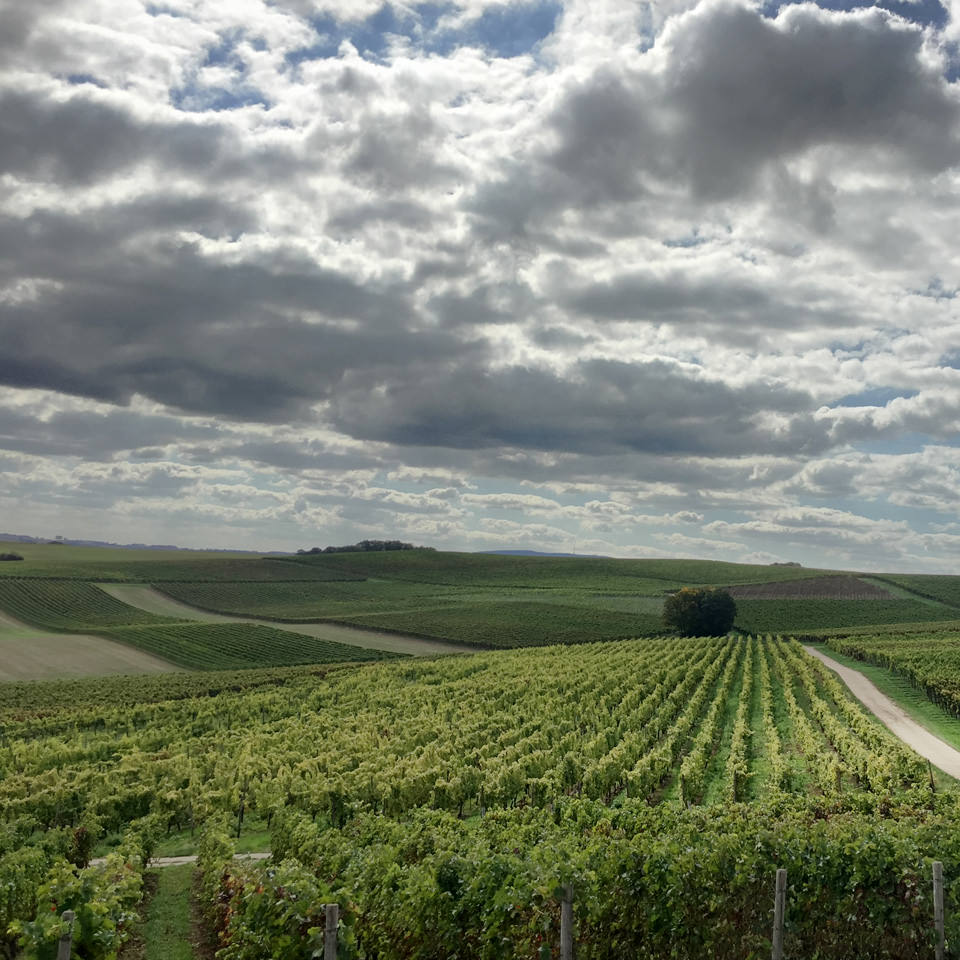 After
AfterHow to switch between 3-picture and 5-picture HDR?
In full Auto mode, the results of the scene analysis determine whether the camera takes 3 or 5 photos. In case you wish to set the amount of photos used manually, that’s possible as well:
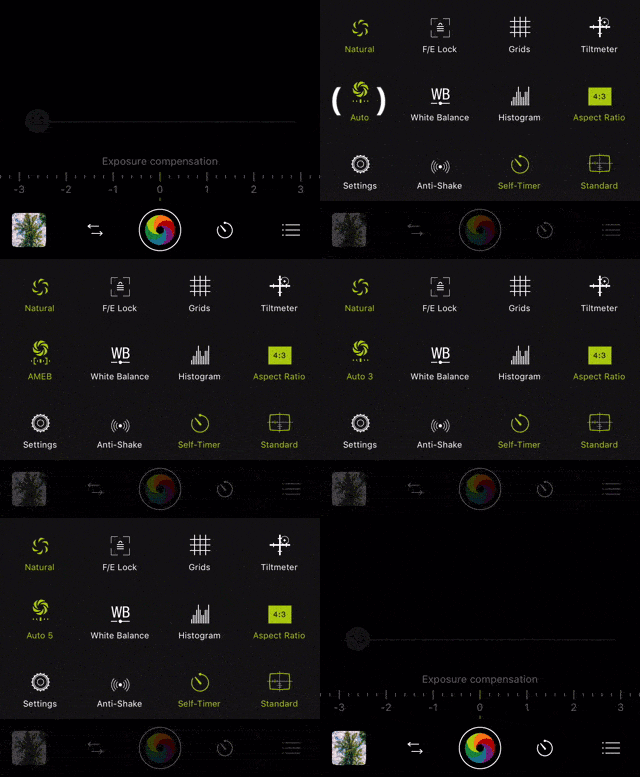
Open the control panel in HDR mode (three lines icon bottom right) and toggle the “Auto” icon until you either see “Auto 3” or “Auto 5”. As long as “Auto 5” is active, the camera will take and process 5 photos – “Auto 3” accordingly means capturing a bracket of 3 photos.
Tipp: Long tap the “Auto” icon in order to see all available bracketing modes at a glance.
3-Picture? 5-Picture? Which mode to choose?
Benefits “Auto 3”
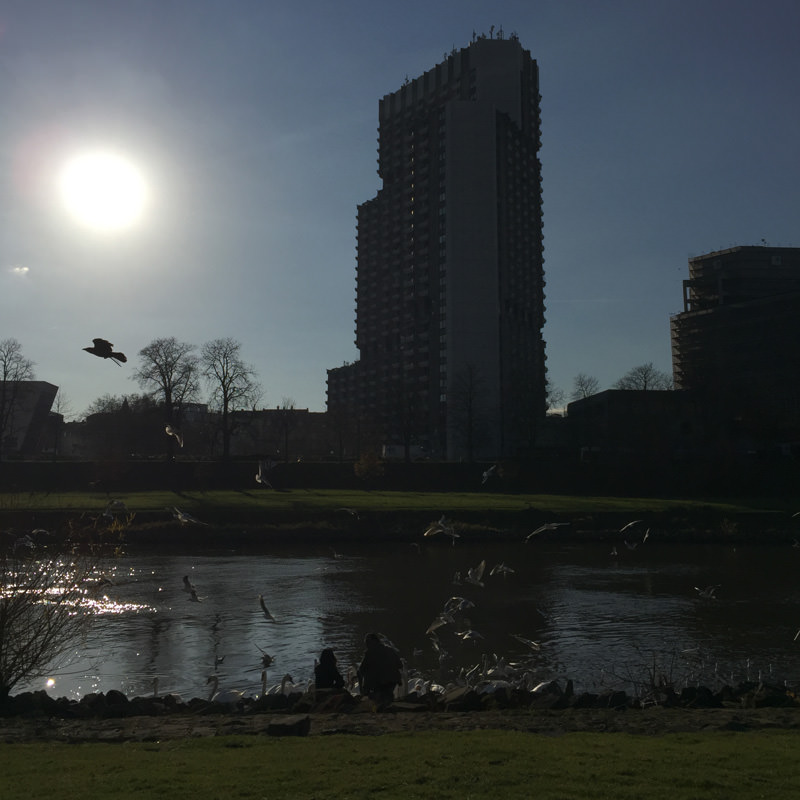
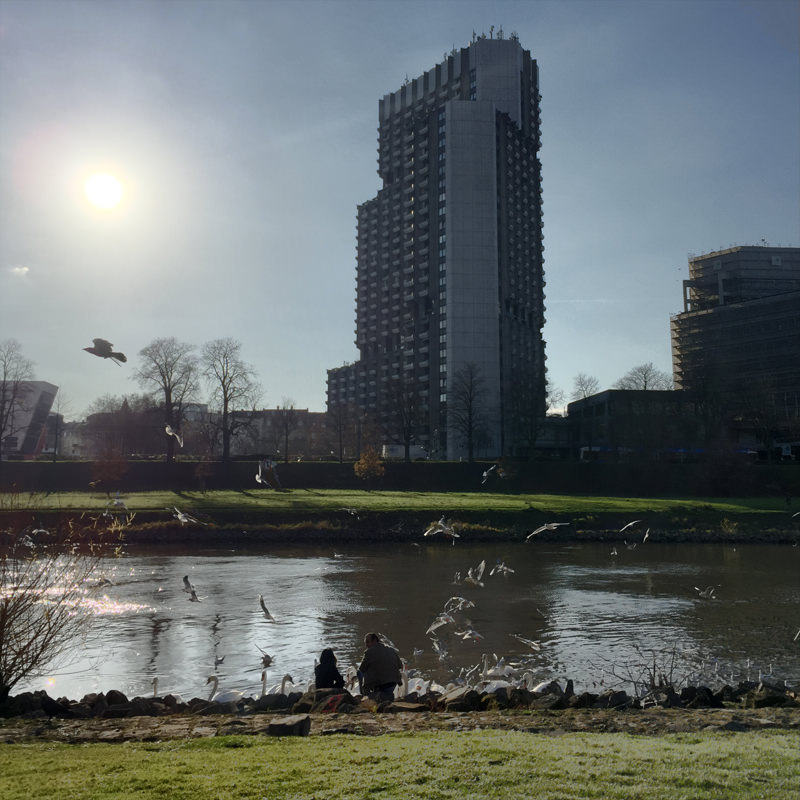
With Auto 3, three pictures are taken in a quick burst and then combined into one HDR image. Since this process is very fast and incorporates a sophisticated image alignment, you can take photos without a tripod and capture scenes with objects in motion without ghosting.
Take a look at the following unretouched photos. On the left side of the image, you can see that the camera was able to capture a bird in mid-flight. Please note that the camera can not align/de-ghost photos of close objects that are moving very fast (e.g. race cars).
 Before
 After
AfterBenefits “Auto 5”
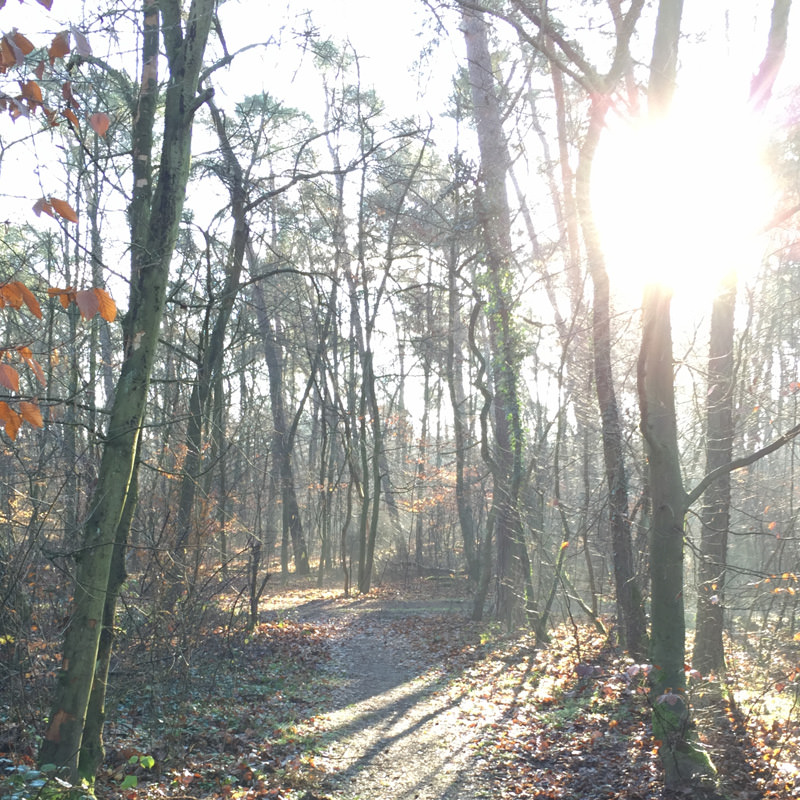
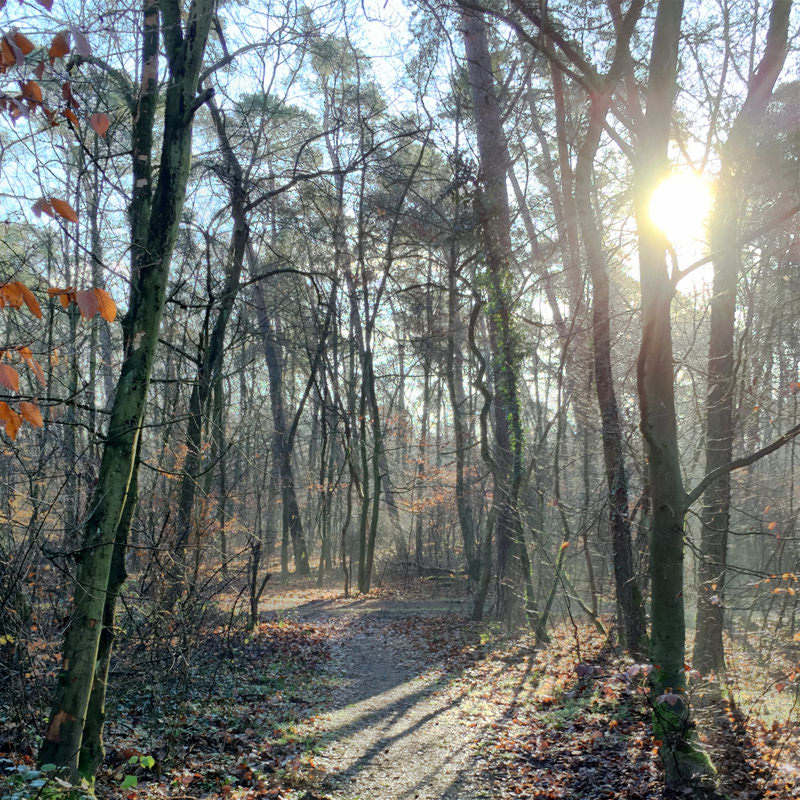
For scenes with very high contrast, 5 photos will yield better results. When taking the photo below I intentionally chose Auto 5, since the scene has an extreme dynamic range (very bright and very dark areas), and because there wasn’t any movement in the scene.
The total exposure time is longer when taking 5 photos, which means fast moving objects might become a bit blurry and deghosting can fail if too much movement occurs from picture to picture. Thanks to the powerful auto-alignment, you can shoot Auto 5 HDR photos hand held – just hold the iPhone as still as possible to get the best results.
 Before
 After
AfterUnlocking vividHDR in ProCamera
The 5-picture HDR update comes free of charge as part of v9.3 for all existing users of vividHDR in ProCamera. For those of you who haven’t already bought the In-App Purchase, we are offering a free HDR test mode with permanently watermarked photos. Simply switch to HDR mode and tap “Try” when the info popup appears. When you eventually want to unlock the mode, switch to another mode and then re-open the HDR mode. The pop-up will appear again and there you will be able to make the purchase. Alternatively, you can simply take an HDR photo and then tap “Save”, and you will be presented with a purchase option.
5-picture HDR is available on the iPhone 5 and later models. Our aim was to bring this innovation to as many users as possible. The iPhone 4S can not handle the large amount of data which goes along with processing 5 photos.
Natural-looking HDR images
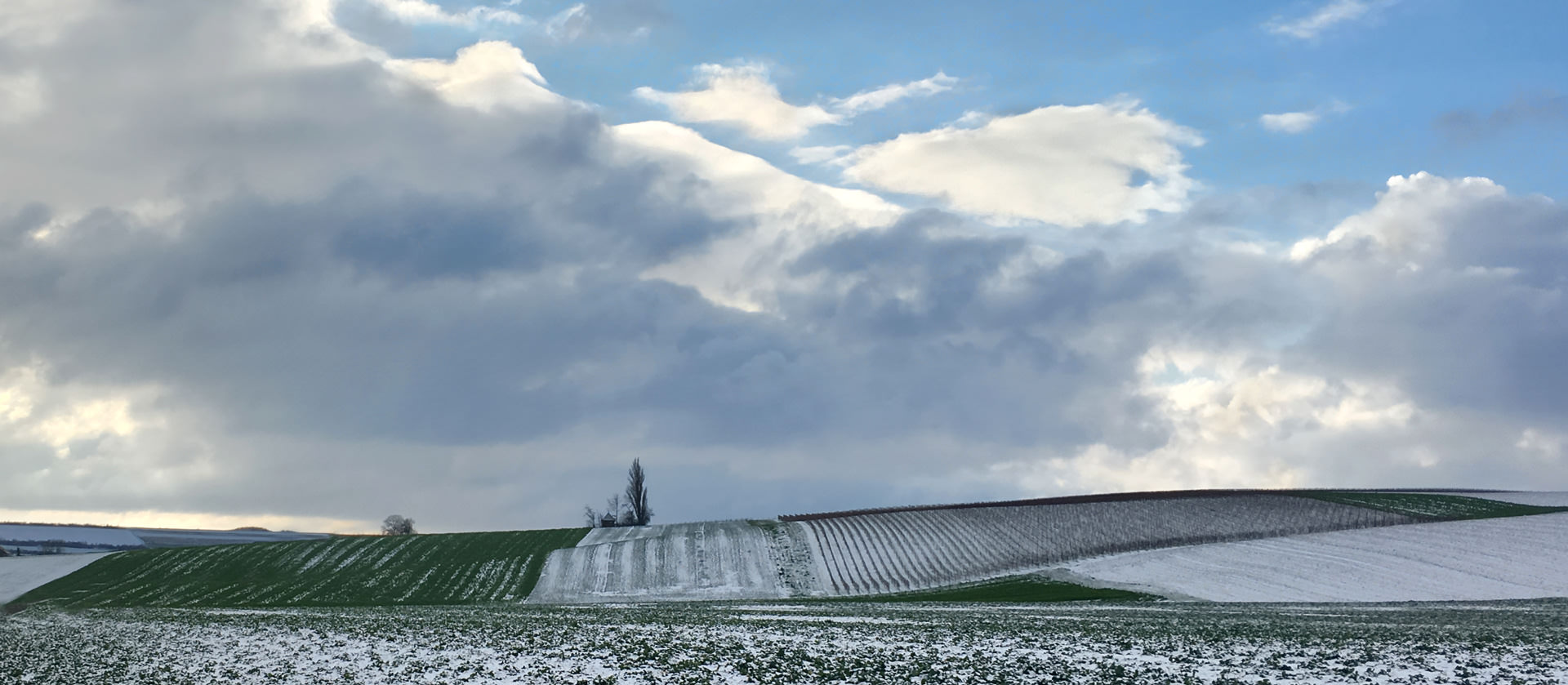
The concept of HDR photography has been around for quite some time. HDR has often been used to create dramatic and surrealistic images. Understandably, exaggerated contrast and dramatic HDR effects are not everybody’s cup of tea.
vividHDR in ProCamera enables you to select and preview various presets, so that you can choose a natural-looking image or one with exaggerated contrast and vivid colors. Make sure to give the black and white preset a try, as it is one of our personal favorites!
Special Bonus: vividHDR + LowLight Plus = LowLight HDR
As a special bonus for users that have unlocked both the vividHDR mode and LowLight Plus, we have included an impressive LowLight HDR mode in our last update.
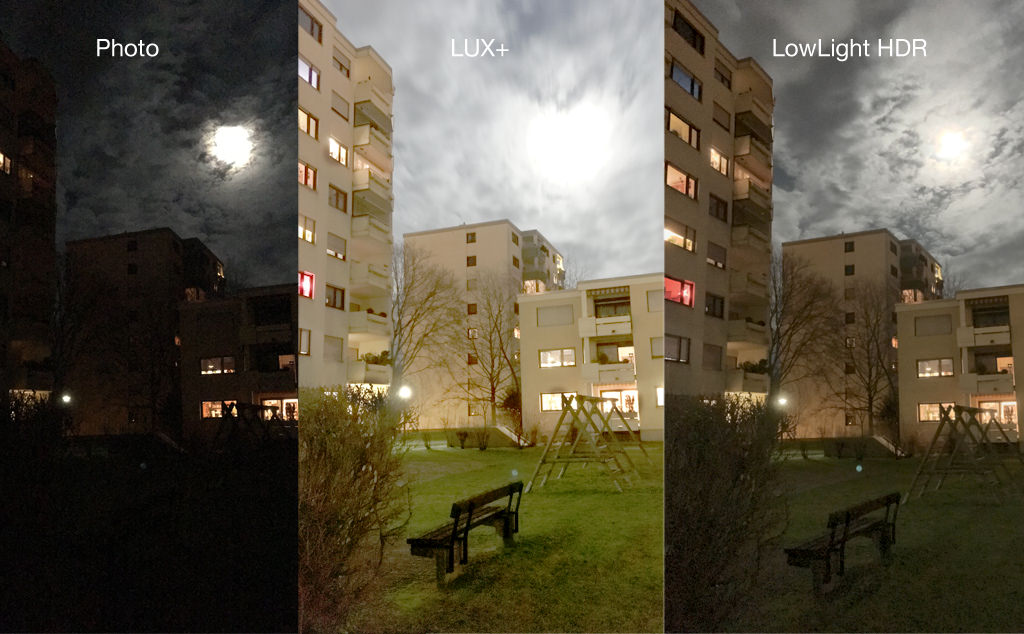
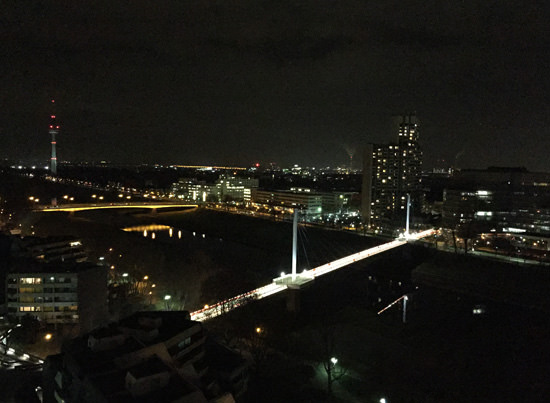
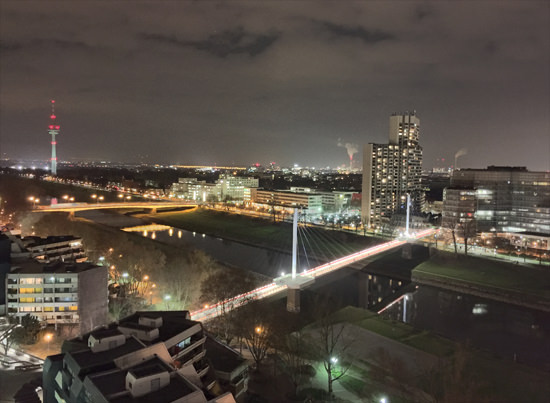
By combining HDR processing and long exposures, you will be able to capture stunning high contrast scenes in low light. LowLight HDR is able to capture fine details in the highlights and shadows – even at night.
The 3 comparison photos displayed above show the results of standard photo mode, LowLight Plus LUX+ and LowLight HDR in a very dark environment:
– The standard photo is very dark, since it is taken in the middle of the night and the houses are only lit by moonlight.
– The LUX+ photo demonstrates just how powerful the long exposure mode of LowLight Plus is. You are able to take a vivid photo with the help of nothing more than moonlight. Pro tip: Use our widget to see when you can take great photos of the next full moon.
– The LowLight HDR photo captures the scene differently compared to LUX+. Different does not mean better or worse. It is just a matter of personal taste. LowLight HDR images will not be as bright as LUX+ photos, but the processing does a great job at preserving detail even in very bright areas. Take a close look at the illuminated windows and notice how there are no burnt out highlights.
 Before
 After
AfterAfter you have unlocked vividHDR in ProCamera and LowLight Plus, you are ready to take your first LowLight HDR photo: Switch to HDR, open control panel (three lines icon bottom right), tap the “Auto” icon until it says “LowLight HDR”. Make sure to use a tripod if it is very dark.
Give it a go in a lowlight scene that contains highlights (street lights, full moon etc.). You will be amazed with the results!