
RAW Photos in ProCamera

Raw capture and editing opens up a whole new area for iPhone photography. Having access to the raw sensor data allows for even more creative freedom in post-processing.
Based on the feedback in the last couple of days, it seems like you are just as excited about the new possibilities of RAW as we are. In this post, we want to outline the current status of RAW in iOS/ProCamera:
- We are happy to introduce RAW capture and editing on all devices with a 12 MP camera. That’s the iPhone 6s, iPhone 6s Plus, iPhone SE, iPhone 7, and iPhone 7 Plus. The front-facing camera is not supported.
- RAW photos are saved in the DNG file format (lossless compression) and are about 10-12 MB in size.
- Currently, a separate JPEG file is always saved along with the RAW photo (.DNG).
- In the iOS Photos app and the ProCamera albums, RAW photos are displayed in preview size/quality. The actual RAW file holds the full 12 MP data – even though some EXIF-viewers only display the pixel resolution of the small embedded preview JPEG.
- Since RAW files always make use of the full sensor (4:3), zoom is disabled and deviating capture formats like 16:9 or 1:1 only affect the appendant JPEG file.
- RAW files contain the unprocessed sensor data. When any kind of image processing happens in the background, where the data from the sensor is being interpreted/altered, it makes no sense to convert the file back into some kind of RAW file format afterwards. Unprocessed sensor data and automatic image processing contradict each other. This affects the HDR and LowLight Plus camera modes, as well as the iOS image stabilization:
– When shooting RAW photos, no iOS image stabilization and processing is applied. You get the unaltered sensor data. When shooting handheld in low light situations, you might get better results with the JPEG/TIFF file format, due to the internal stabilization/optimization. Automatic Image Stabilization (software) and Optical Image Stabilization (hardware) work hand in hand on devices capable of both. You can’t have one without the other.
Our Anti-Shake feature, which delays the capture until the device is held steady, works with the RAW file format. Its mechanism helps you get sharp photos by avoiding camera shake.
– When switching to HDR or LowLight Plus camera mode, where RAW capture is not supported, the file format will automatically switch to JPEG. If you have selected RAW files in settings, the app will automatically switch back to RAW capture, once you enter a camera mode that supports this file type.
How To Switch The File Fomat
In ProCamera v10.0, we have introduced an additional way to check and/or change the file format.
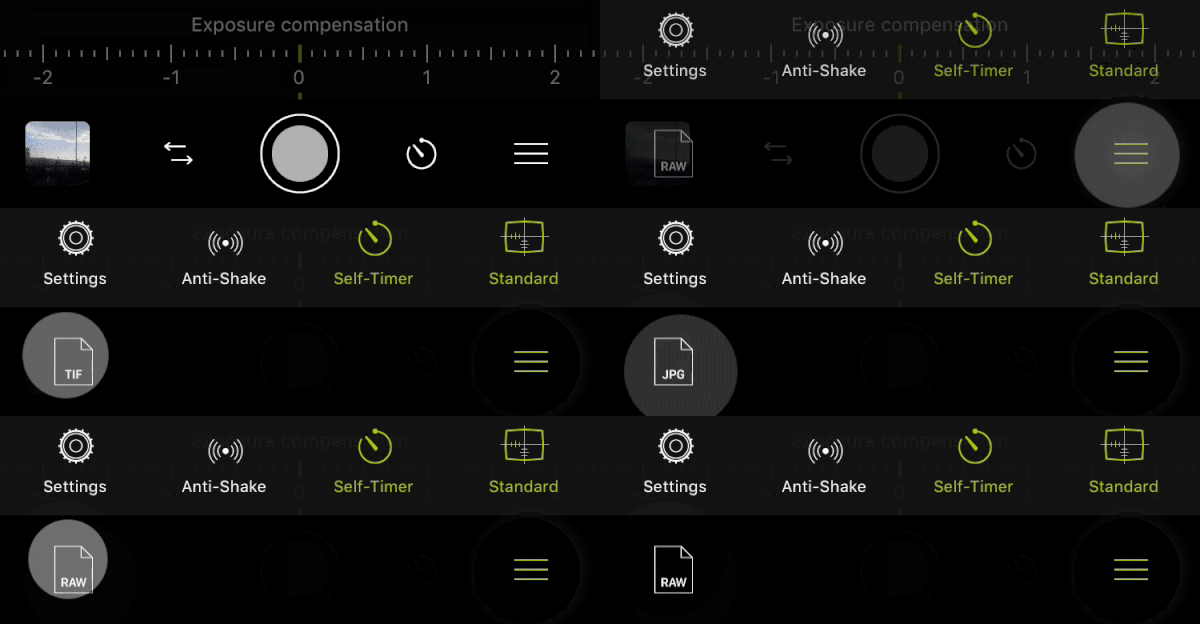
Traditional way: Open Control Panel (three lines icon, bottom right) > Settings > Photo Mode Options: File format.
New way: Open the Control Panel. In the bottom left corner, the present file format is displayed. It’s also handy for checking if you are currently shooting RAW photos – or if RAW capture is supported in the current camera configuration in the first place.
Tap the file format to toggle between all available file format options on your device/in this camera configuration (camera mode, active lens)
Editing Raw Files
The Editing Suite of ProCamera now also supports RAW files on all devices capable of shooting RAW photos. Once again, this means iPhone 6s, 6s Plus, SE, 7, and 7 Plus.
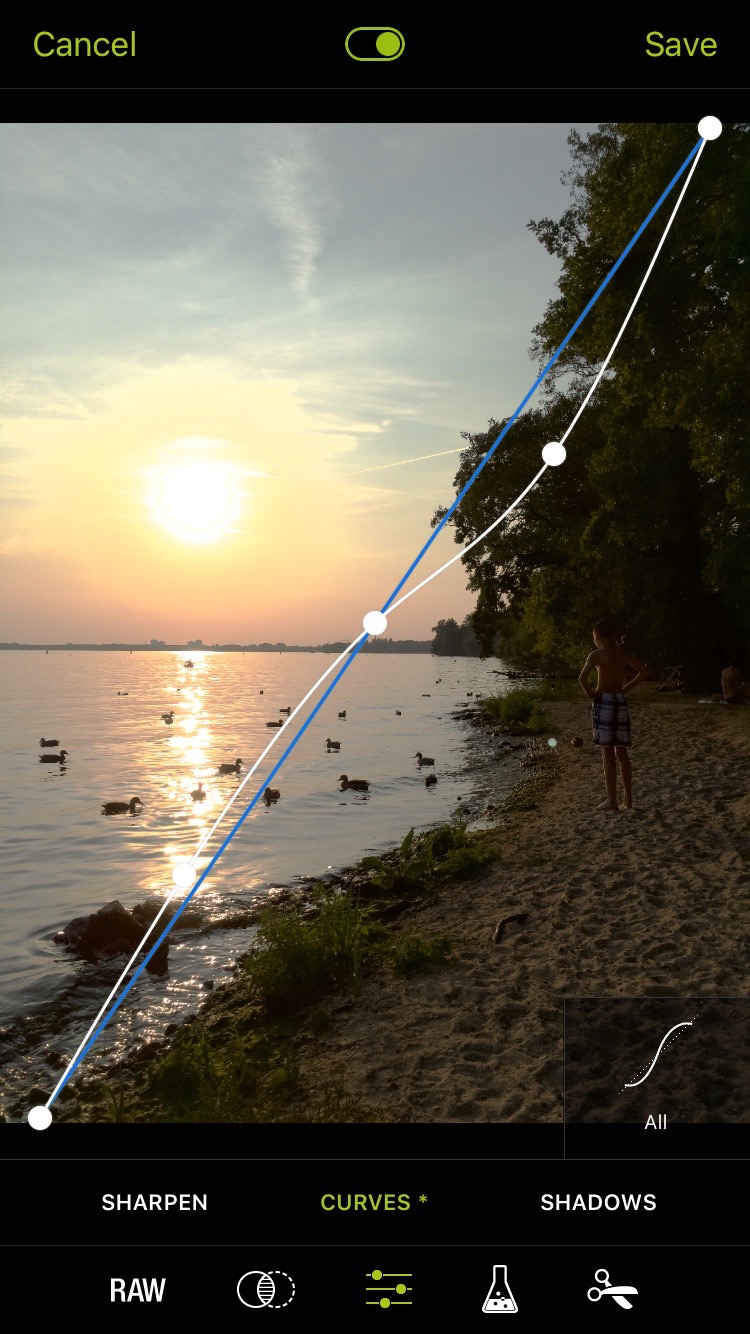
When editing, RAW files (.DNG) remain untouched. Edited versions of the capture will be saved as a new JPEG files. You will notice that the RAW editing in ProCamera includes brand new adjustment tools in an additional fifth section called “RAW” (icon bottom left). Of course, you can also utilize the regular ProCamera editing tools for your RAW files – or send the RAW file to Photoshop CC on your desktop computer.
How To: Open a RAW photo in the ProCamera gallery and tap “Edit”. In the ProCamera albums, RAW files have a visible “RAW” marking.
Special Characteristics of the iPhone 7 Plus
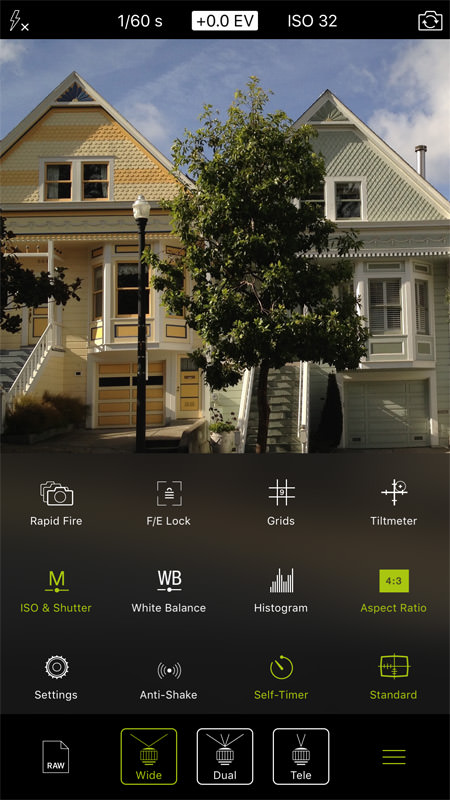
The iPhone 7 Plus is the first iOS device with a dual camera system. Therefore, this device has some unique characteristics and settings.
With two simple taps, you can quickly switch between the Wide, the Tele, and the Dual lens mode of the iPhone 7 Plus. You will also feel the lens switch with haptic feedback.
Since the Dual lens camera mode automatically merges the data of the two lenses/sensors, RAW capture is only available with either the Wide or the Tele lens – not the Dual lens mode. In Dual lens mode, manual settings are inoperative, but it noticeably increases the image quality of zoomed-in shots.