
What’s New In ProCamera v9.5
ProCamera v9.5 is a big leap forward. Because we believe in the importance of innovation as well as precision, this update introduces brand new features and adds further refinement and ease-of-use to our existing ones.
Adobe Creative Cloud Integration
ProCamera now offers the option to directly send an image file from within the app to the desktop version of Adobe Photoshop CC or Adobe Illustrator CC. Alternatively, you can also save a photo to Creative Cloud, making it available on any device with your Adobe ID.
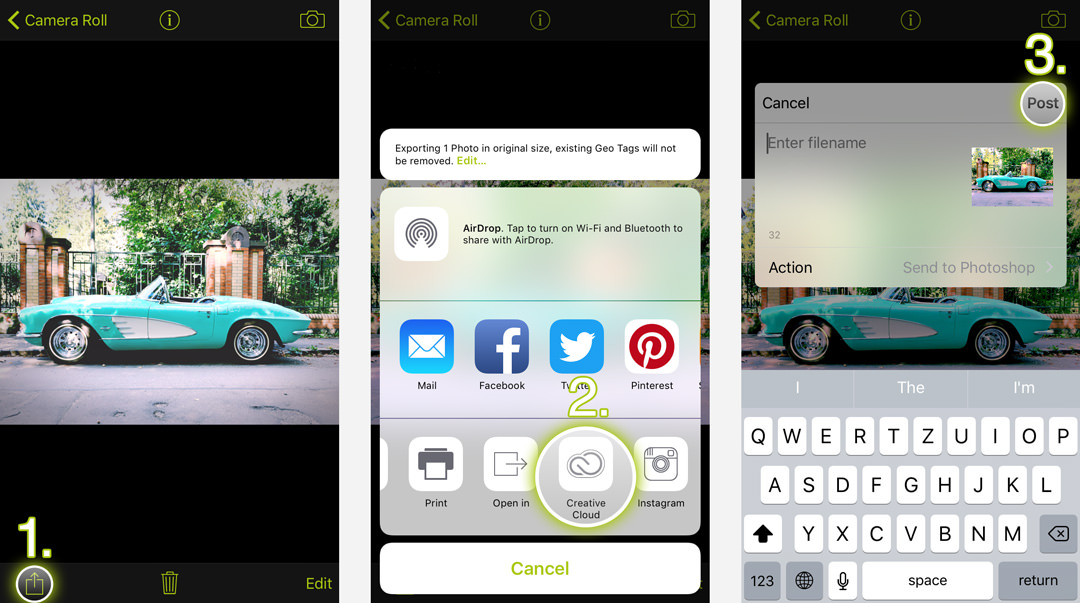
The screenshots above show the three simple steps: Open the image file in the gallery of ProCamera and tap the Share icon. In the list of available actions and services, you will see the Creative Cloud icon. In the subsequent dialog box, you can name the file (optional) and choose the desired action.
To sign in/off with your Adobe ID, go to Settings > Services > Creative Cloud.
HDR Multi Save
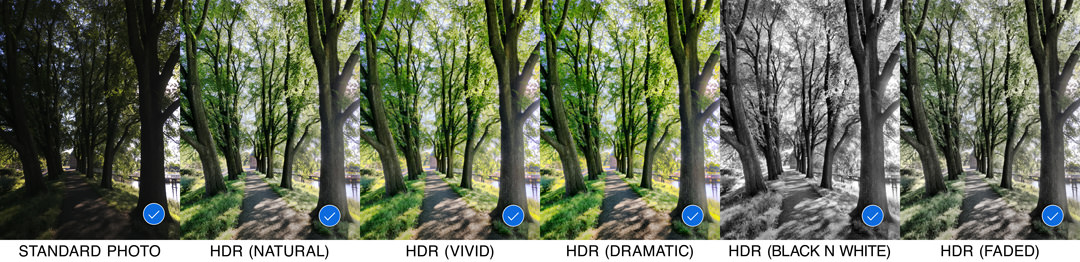
Now, you can select more than one preset in the HDR camera mode and save different versions of a single capture. Simply swipe left and right to preview the different HDR presets, then tick off the ones you want to save.
To see the HDR preset preview screen, make sure that Auto-Save is disabled in HDR camera mode: Settings > HDR Settings > Auto-Save: Off.
If you have been shooting in HDR camera mode, you may have run into a situation, where it’s hard to decide which preset to choose. Five different HDR presets are available (Natural, Vivid, Dramatic, Black n White, Faded), and every one of them has its own charm.
In the past, you could try and take another HDR photo to apply a different preset – but that was time-consuming, and there are situations that simply aren’t repeatable. The hard choice is now a thing of the past: Take the photo and select any number or combination of HDR presets. It’s as easy as that!
Focus & Exposure Polishing
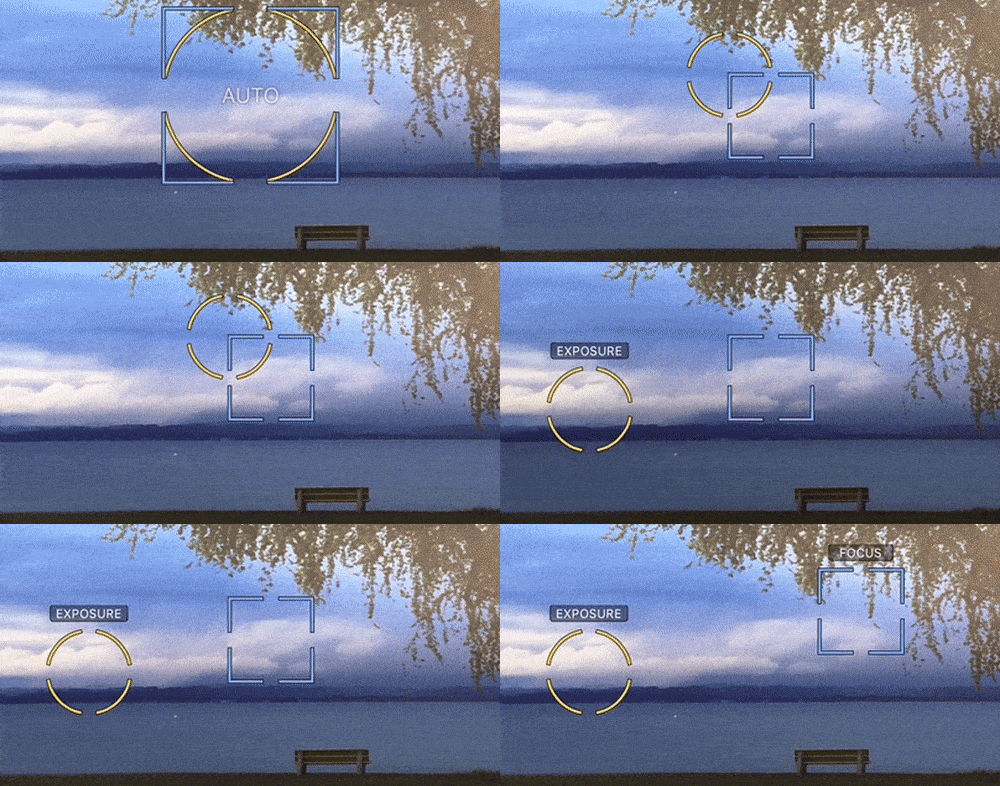
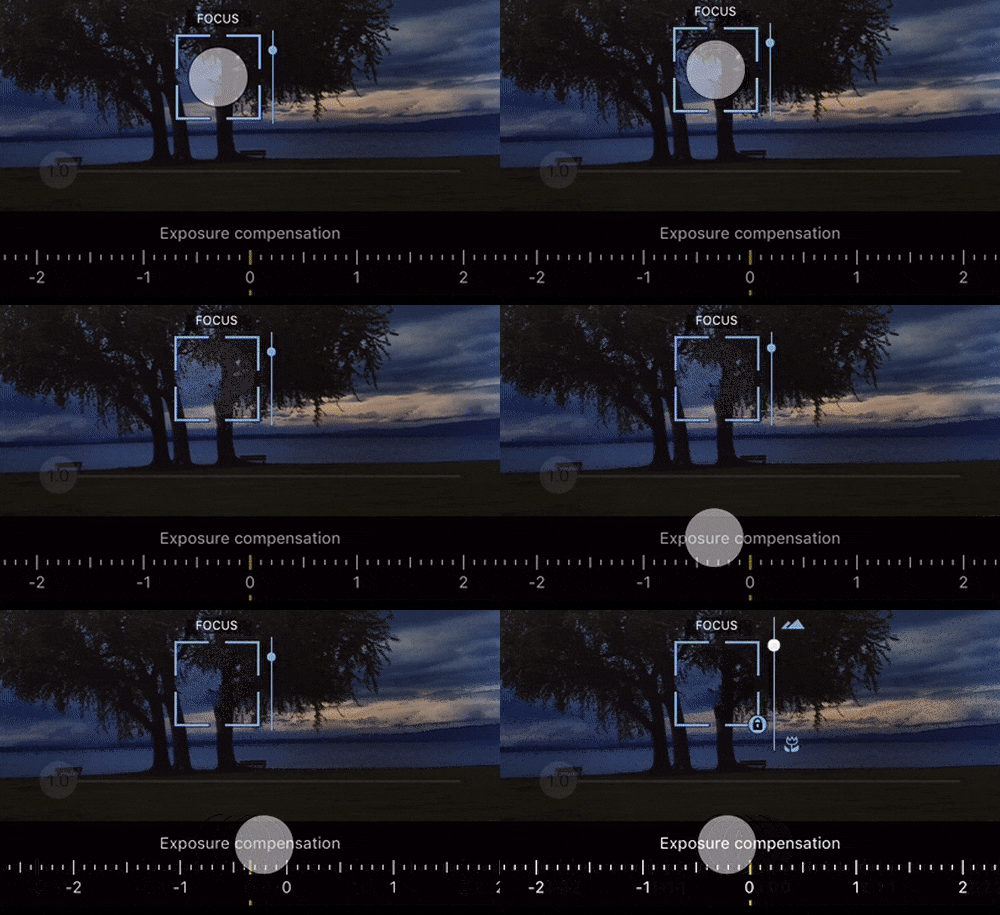
We have revised our focus and exposure controls for an even more streamlined experience. We think setting focus & exposure should be as intuitive and quick-and-easy as possible. The updated design is rich in contrast, provides more clarity, and is incredibly responsive to your touch.
*Tip:*You can set focus and exposure even faster with a cool new feature. Tap the center of the screen once from Auto Mode (twice if you have placed the focus & exposure elements outside of the center before that) and the big AUTO icon will split and reveal smaller focus and exposure icons. Thanks to the slight offset of the two small icons, you may immediately drag either one of them to your desired area on the screen first.
Audiometer
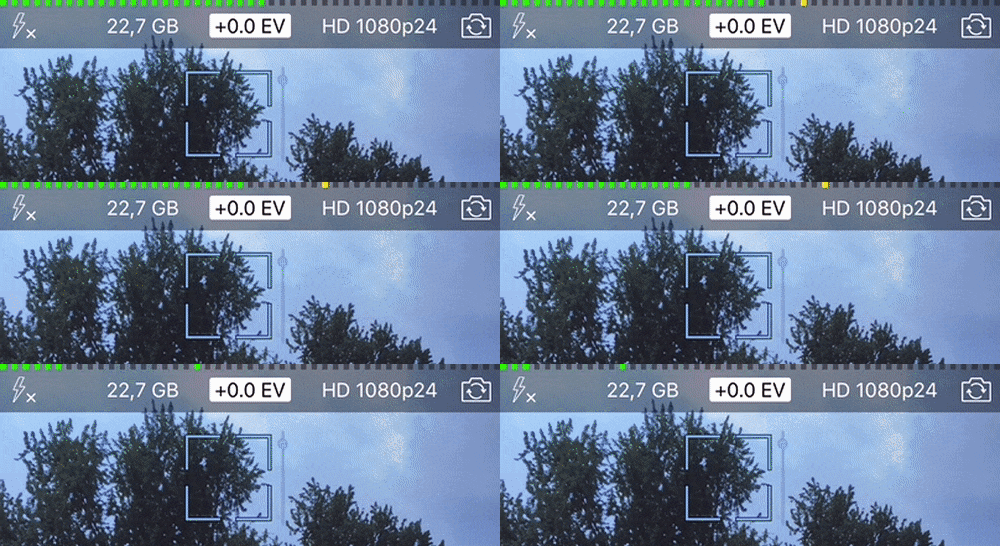
In video mode, the Audiometer provides information on the current microphone input volume level. This helps monitor the audio level: Will the recorded sound be too loud? Too soft? Is the external microphone recording anything? Now you will know.
It’s (de-)activated via Settings > Video Mode Options > Audio Level Meter.
Presentation Mode
This new option in settings lets you make your interactions with the screen visible. Each touch is indicated by a translucent circle. This makes it easy to point out details in screen recordings and presentations.
To activate this mode, go to: Settings > General Options > Presentation Mode (this option is part of the extended Settings, so make sure to tap the “More” button at the top of the Settings page first).
As with all new iOS releases and updates, if you have any suggestions or find a bug, then please let us know via the in-app support or email us at [email protected].
If you’d like to support our development please help spread the word. Consider leaving a review in the App Store: https://review.procamera-app.com
Since we lose all previous App Store ratings once we release an update, every single new or refreshed review is much appreciated.