
What’s New in ProCamera v11.0 – HEIF, HEVC, Mirroring, iOS 11
Entering a new era: Our first iOS 11 release is all about “high efficiency” and embracing the future
ProCamera now fully supports the HEVC compression standard for videos and also for photos in the form of HEIF files
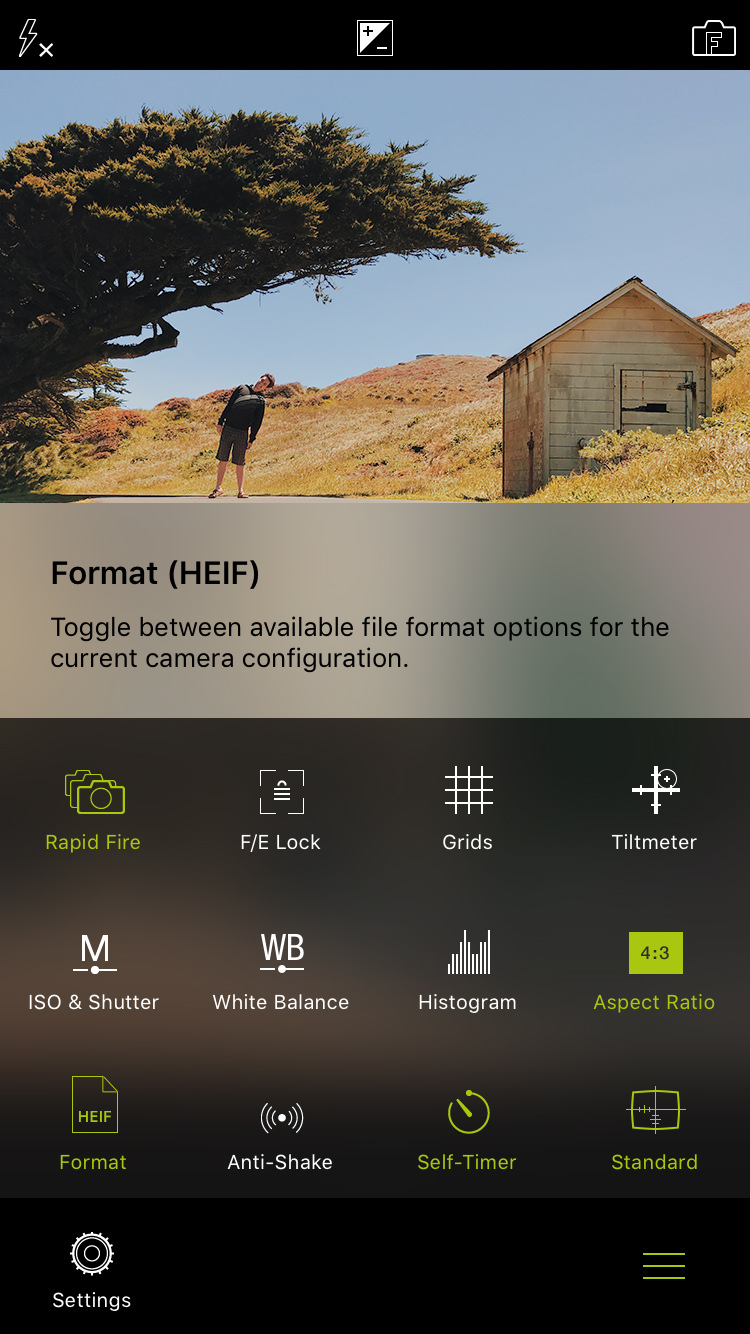
HEIF: HIGH EFFICIENCY IMAGE FILE FORMAT
The new photo file format gives you even better image quality at nearly half the size of a JPEG file. In other words, you can store almost twice as many photos on your device at an even higher quality level! HEIF photo files taken with your iPhone show the file suffix .heic.
In ProCamera, there are two ways to switch file formats:
a) Settings > File Format
b) Open Control Panel (three lines icon) > Toggle “Format” icon
Via Settings > File format, you can also choose your preferred quality level (compression), which is a determining factor for the final file size. For HEIF files, a quality setting of 100% indicates a lossless compression. The HEVC compression for HEIF files is a lot more efficient than JPEG compression and creates less artifacts. This means even lower quality settings will create files of decent quality at very small file sizes.
HEIF is available for all iOS 11 devices with an A10 or A11 Fusion chip (iPhone 7, iPhone 7 Plus, iPhone 8, iPhone 8 Plus and later).
HEVC: HIGH EFFICIENCY VIDEO CODING
The new compression standard enables you to save up to 50% storage space with increased video image quality. HEVC, also known as H.265, is the successor to the widely used H.264 codec.
HEVC is the future and in many ways better than the older H.264 – but if you need maximum compatibility without re-encoding, choose H.264. You can select the codec via: Settings > Video Mode Options: VideoCodec.
HEVC is supported on all iOS 11 devices with an A10 or A11 Fusion chip (iPhone7, iPhone 7 Plus, iPhone 8, iPhone 8 Plus and later).
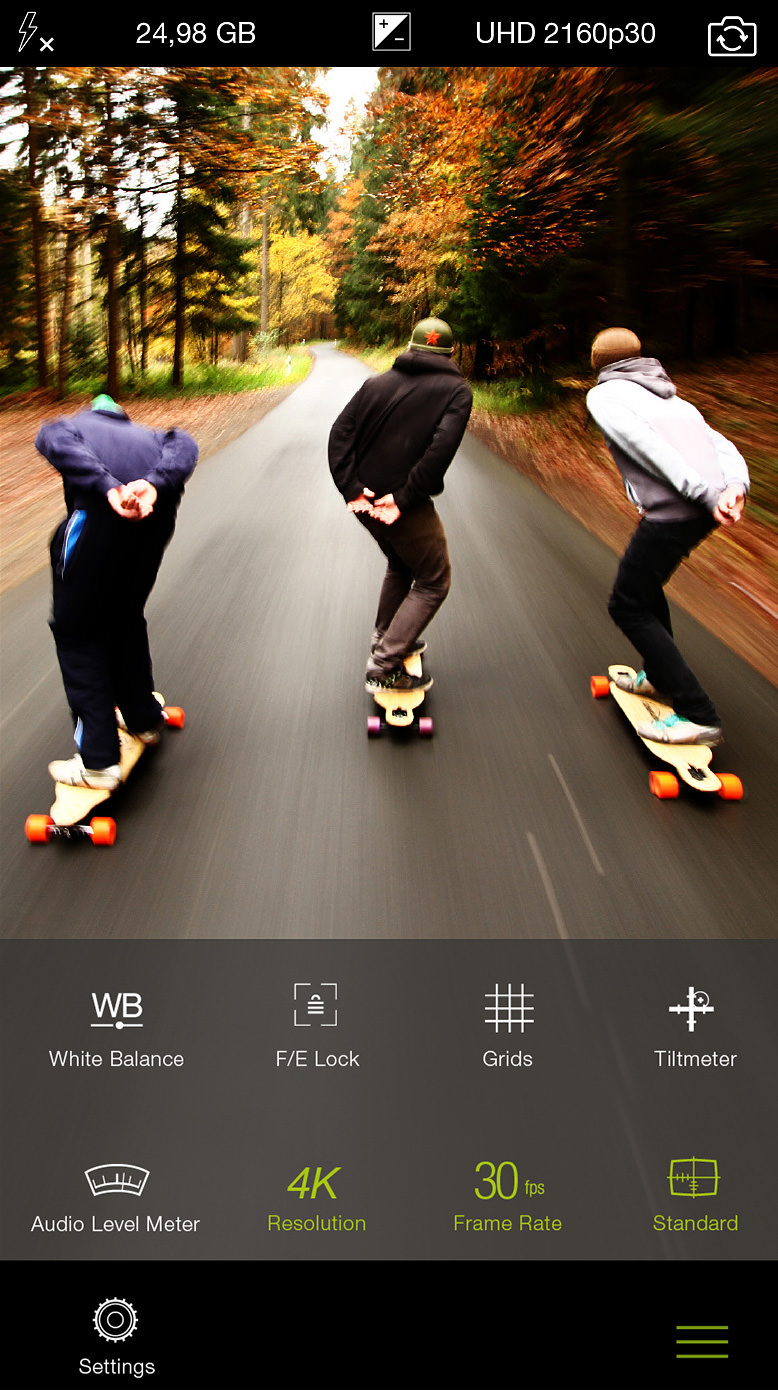
HEIF & HEVC: GENERAL INFORMATION
HEIF, .heic, HEVC, H.265? That’s a lot of acronyms, let’s break it down…
- HEVC is a relatively new and very efficient video compression standard
- Simply put, a great compression standard does two things: Ensure a high image quality while keeping the file size small
- HEVC (H.265) is the successor of the widely used H.264 codec
- Using HEVC, you can save around 50% storage space
- For maximum compatibility, ProCamera still supports recording with H.264 (Settings > VideoCodec)
The connection between HEVC and HEIF:
- The new file format for still images is called HEIF: High Efficiency Image File Format
- HEIF was developed by the Moving Picture Experts Group (MPEG)
- HEIF files can be a container for various image data, such as JPEG compressed images
- When HEVC compressed data is saved in a HEIF container, the file extension is “.heic”
- Storing JPEG data in a HEIF container does not really make a lot of sense, yet it is possible. The real potential of HEIF lies in its ability to store HEVC compressed information
- You can use ProCamera’s gallery to check file formats
- Via Settings > File format, you can set the compression rate in ProCamera. For HEIF files, 100% means lossless compression
- When editing a photo in ProCamera, the original photo file format (JPEG/HEIF) remains unchanged
- When experiencing issues when sharing HEIF files, you can use our Export Menu to convert to JPEG (open photo, tap and hold the share extension icon bottom left)
- Via iOS Settings > Photos > Transfer to Mac or PC, you can determine whether the original files are transferred – or photos/videos are transcoded into a compatible format for the receiving device. Using the „Automatic“ setting, you won’t run into compatibility issues.
- Like JPEG files, HEIF files also support the Display P3 color space (wide color)
- All Macs running High Sierra support the new formats
- … and in case you wondered: Most often, HEIF is pronounced “heeef”
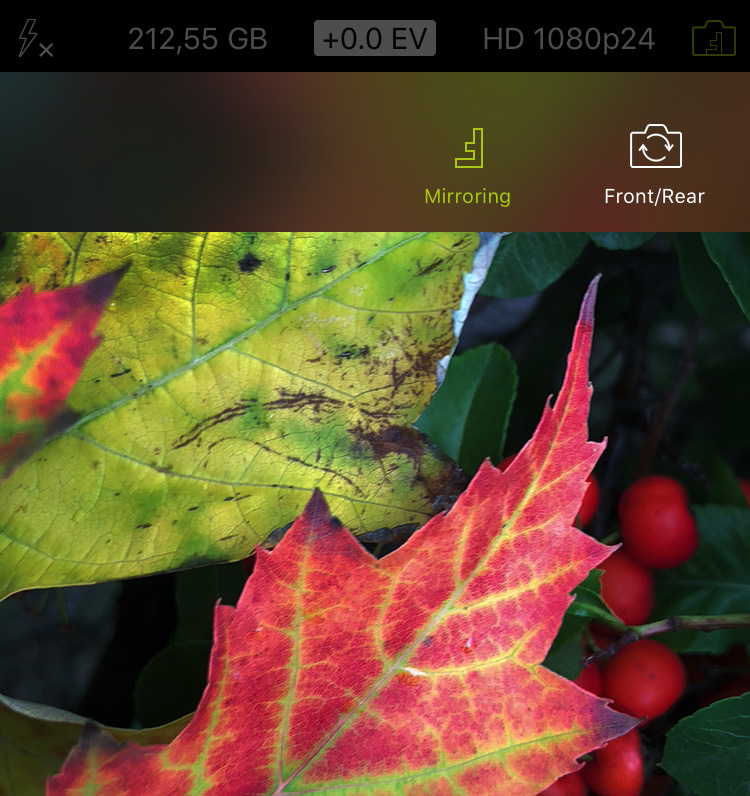
MIRRORING OPTIONS
Special add-on lenses require the camera image to be mirrored. With this update, we now offer all possible mirroring options. When enabled, this feature flips/turns the preview in the viewfinder as well as the final photo/video.
How to activate: Settings > Advanced Settings > Mirroring Options Menu
Once activated, you will see that the Front/Rear Camera Switch icon in the top right corner of the capture screen comprises the letter “F”. Simply tap that icon to open the dedicated menu; here you can toggle through the mirroring options – or switch between the front and the rear camera. The letter “F” inside the icon will change its orientation according to the current mirroring configuration (see screenshot).
iOS 11 OPTIMIZATIONS
General improvements and lots of behind-the-scenes work to make ProCamera run super smooth on iOS 11 and the new generation of iPhone.
To find more about the extensive collection of features in ProCamera, check out our updated English Manual.
As with all new iOS releases and updates, if you have any suggestions or find a bug, then please let us know via the in-app support or email us at [email protected].
If you’d like to support our development please help spread the word. Consider leaving a review in the App Store: https://review.procamera-app.com
Every single review is much appreciated. Thank you!