
What’s New in ProCamera v9.3
ProCamera v9.3 is here and it brings quite a number of exciting new features. The absolute highlights of this major release are the brand new LowLight Plus camera mode and the 5-picture HDR update. In addition to that, v9.3 offers a whole range of new features and functional enhancements…

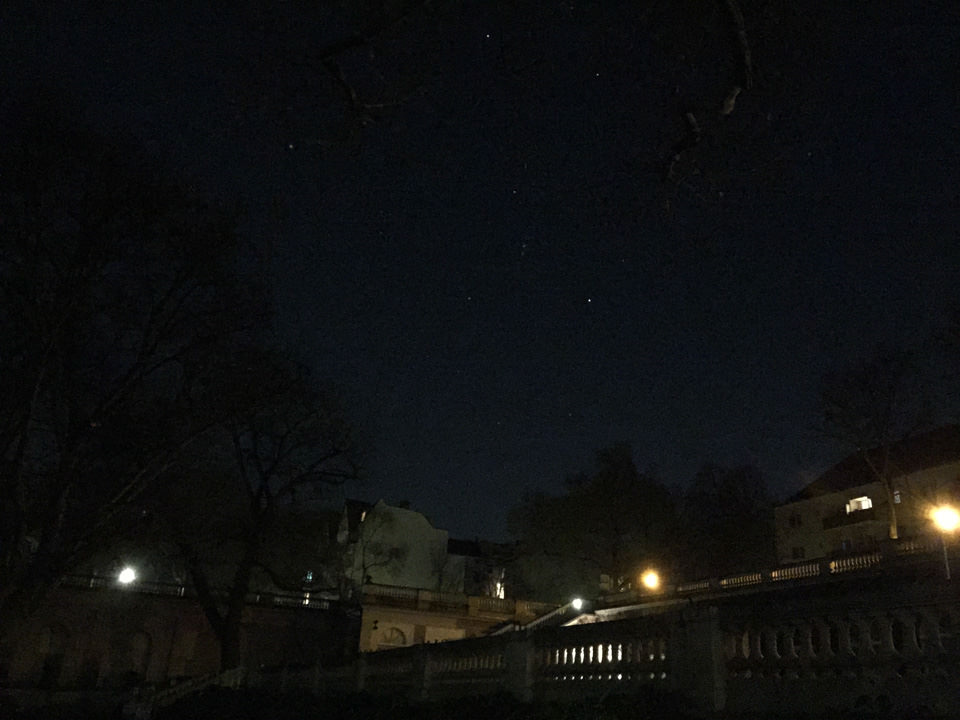 Standard Photo
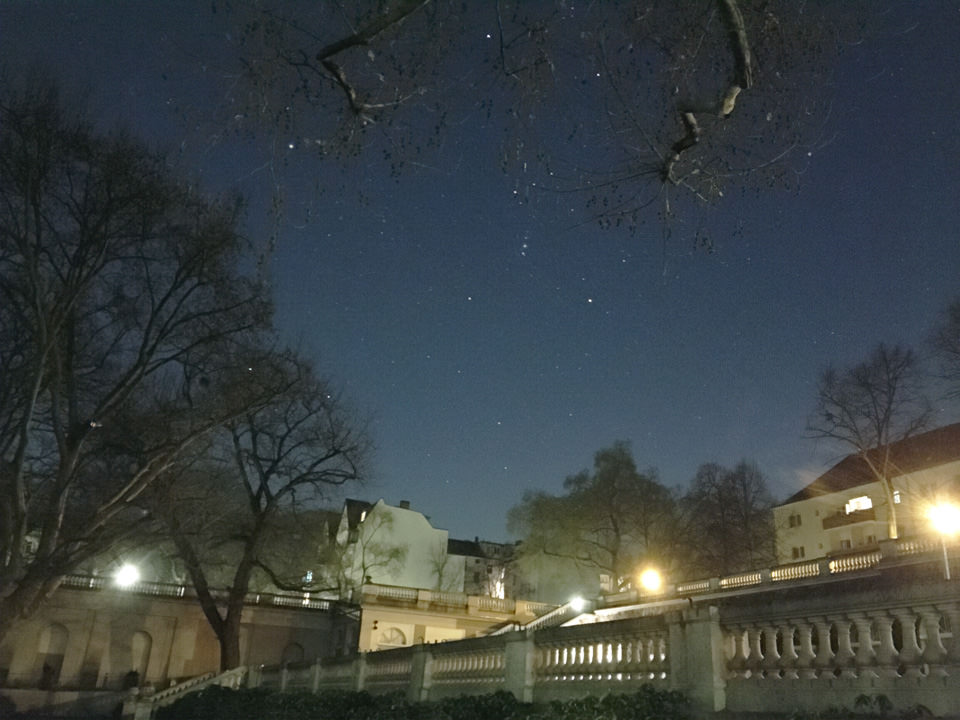 LowLight Plus
We are very excited to usher in a new era for mobile low light photography: With the introduction of the LowLight Plus camera mode, you are able to capture stunning photos in low light conditions – indoors and outdoors.
The brand new LowLight Plus mode was developed in cooperation with our technology partner Ittiam Systems and is available as an In-App Purchase. In addition to a dedicated tripod mode, it also gives users users the power to reduce noise in their photos with hand held photography. By automatically combining multiple photos, it surmounts both hardware and software limitations to create superior low light photos.
LowLight Plus is supported on iPhone 5, 5s, 6, 6 Plus, 6s, and 6s Plus running iOS9.
LowLight Plus: 3 Ways To Use It
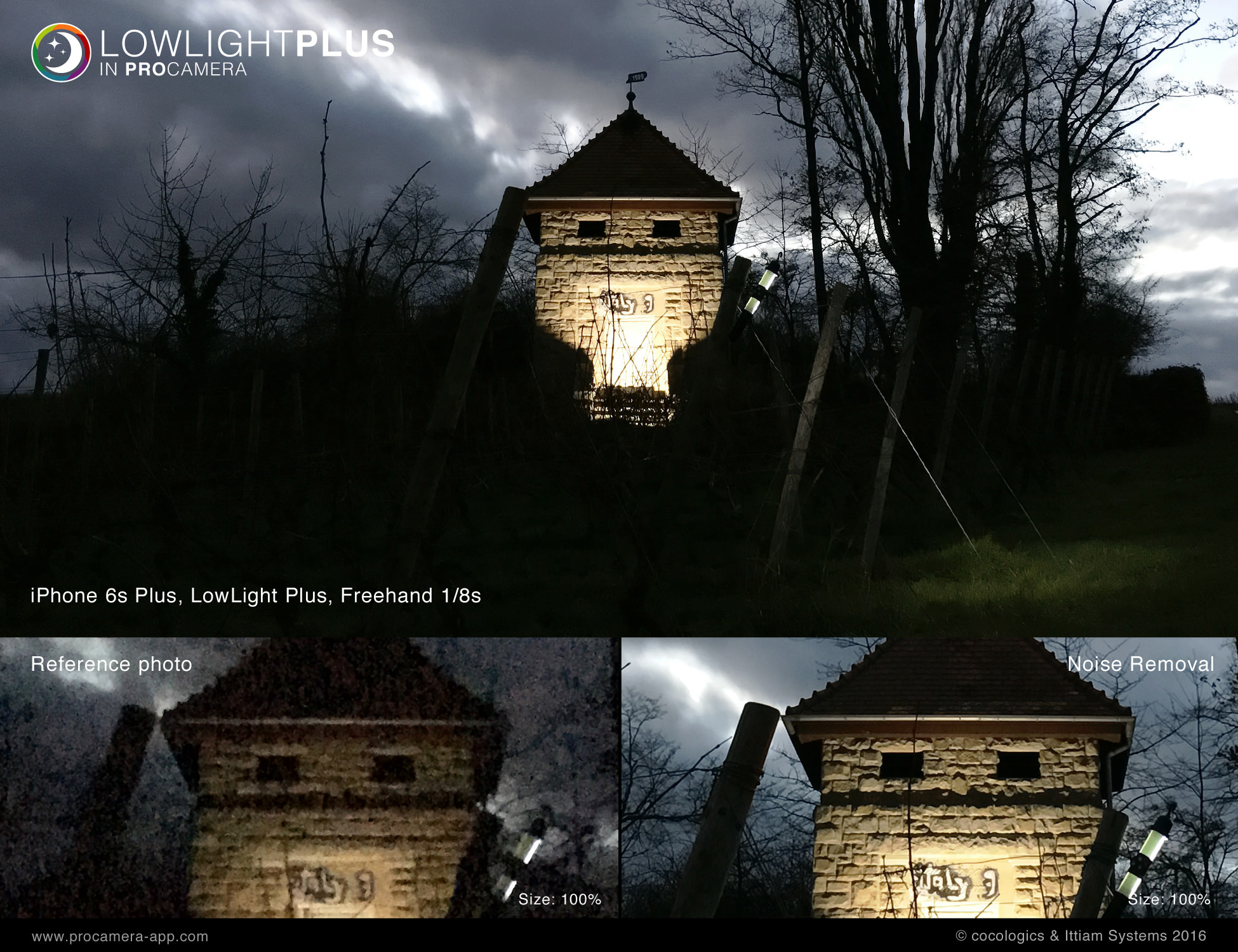
1. Noise Reduction – Hand held
Now, you can take noise-free photos without a tripod using our revolutionary image alignment technology. Noise reduction is achieved by automatically combining multiple photos taken with exposure times of up to 1/8s into one superior image.
You will see an orange icon that shows hands holding a camera when this mode is active.
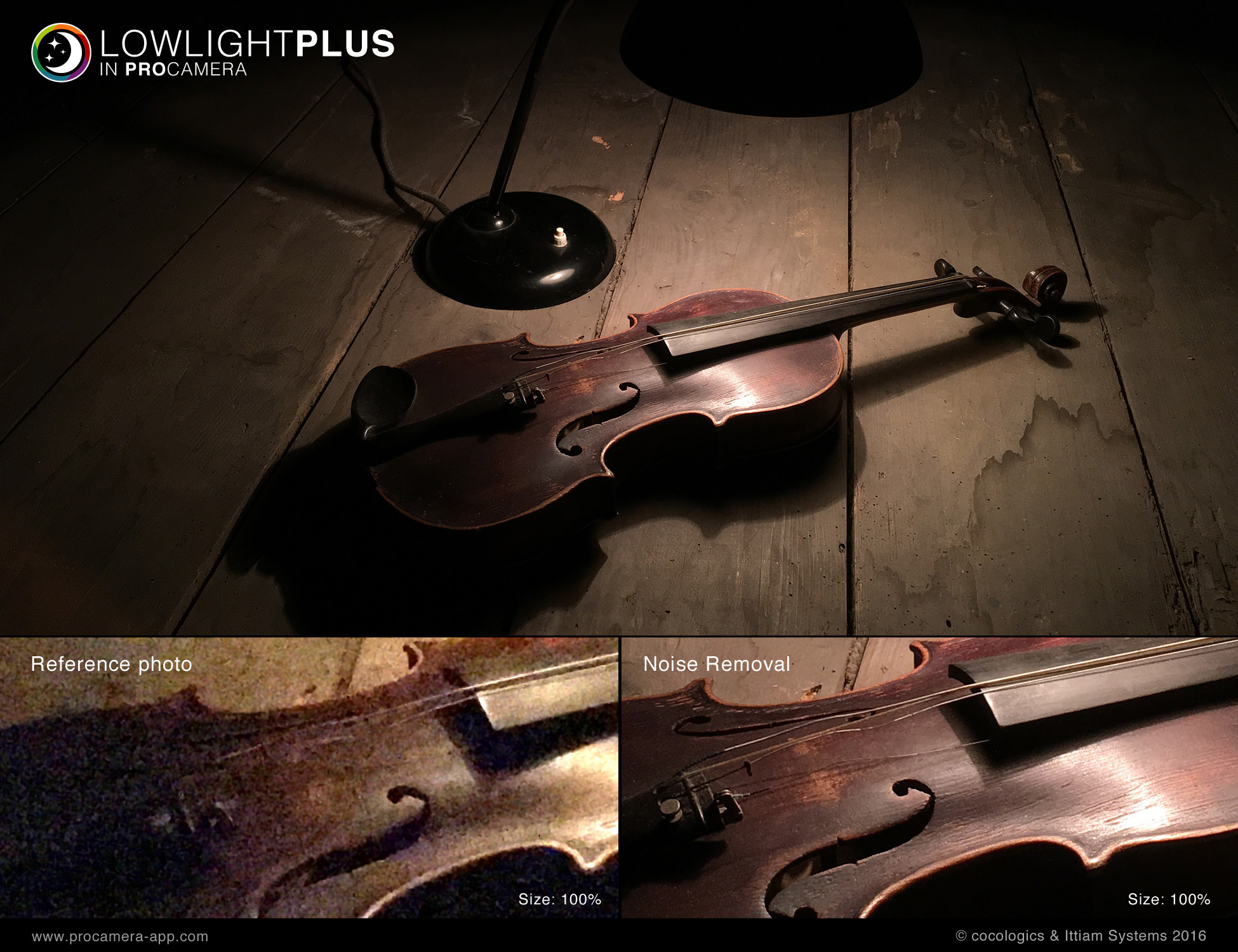
2. Noise Reduction – Tripod Mode
When using a tripod, multiple photos are captured and combined into one superior photo using the device’s maximum exposure time. The iPhone’s motion sensors automatically detect whether the device is kept steady enough to capture photos at maximum exposure time.
When stability has been achieved, the device will switch to tripod mode and display a tripod icon (top left) instead of the orange shaky hands symbol.
3. Long Exposure – LUX+ Exposure Boost
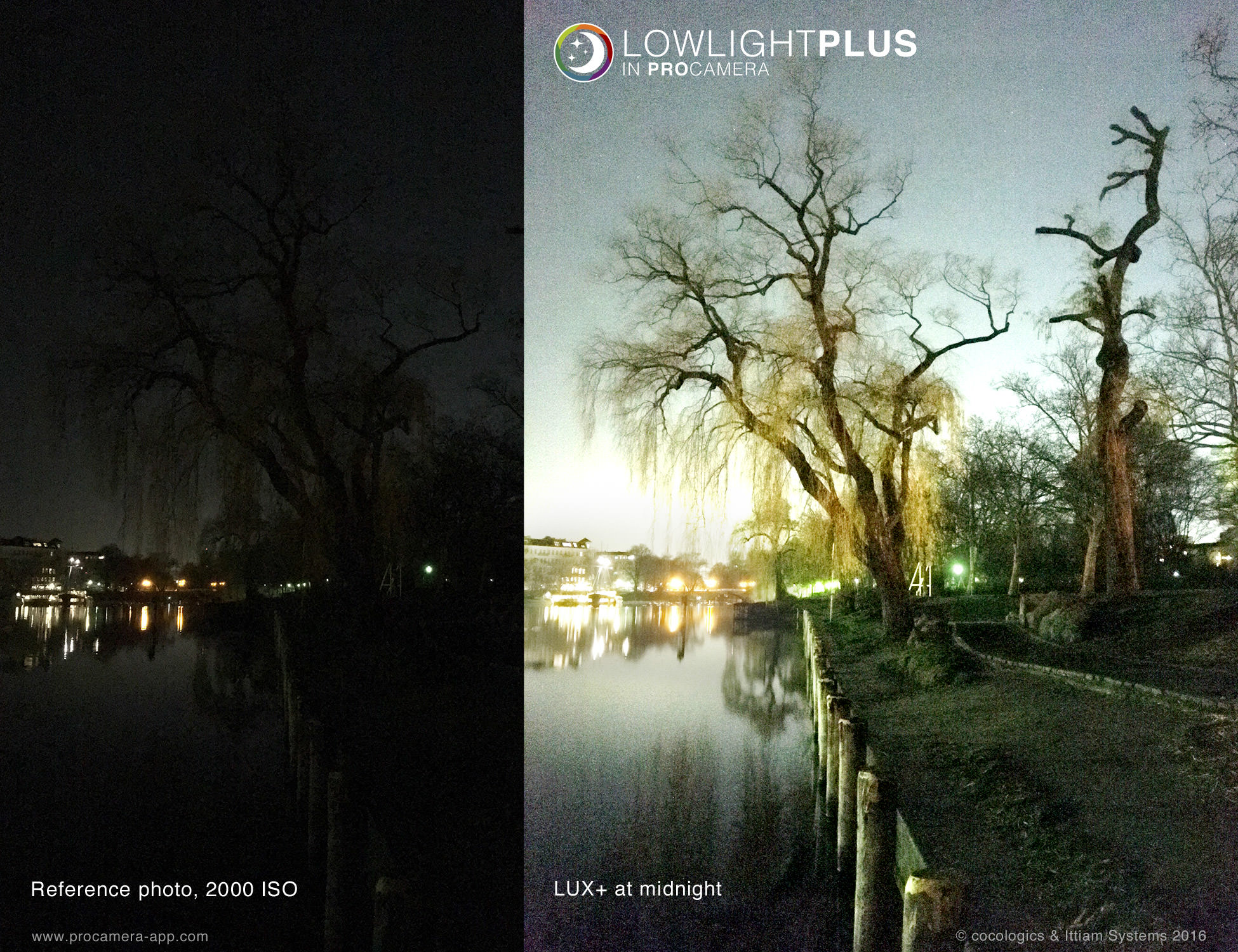
By activating “LUX+”, you can now take photos even in very dark environments. Thanks to the powerful exposure boost, candlelight or moonlight will suffice as a light source. Using a tripod is mandatory, as LUX+ captures up to 64 separate images, and the device must remain completely still during this time. Long exposure photos may even come out brighter than you perceive the scene with your own eyes. LUX+ turns night into day!
When LUX+ is activated, a tripod icon is always displayed as this mode requires total stabilization. The tripod detection is very sensitive and even detects slight ground vibrations (e.g. on a bridge) or shaking caused by wind. The tripod icon will turn red if the iPhone detects too much camera shake.
5-Picture HDR
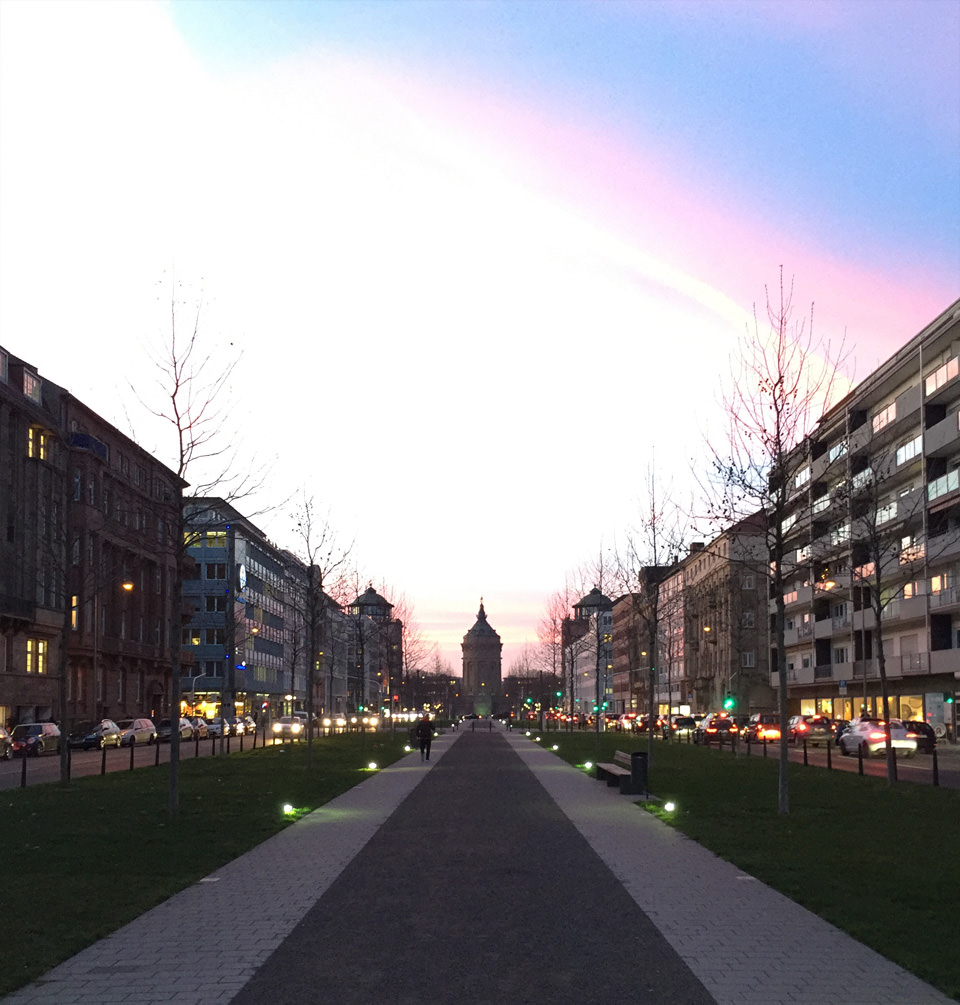
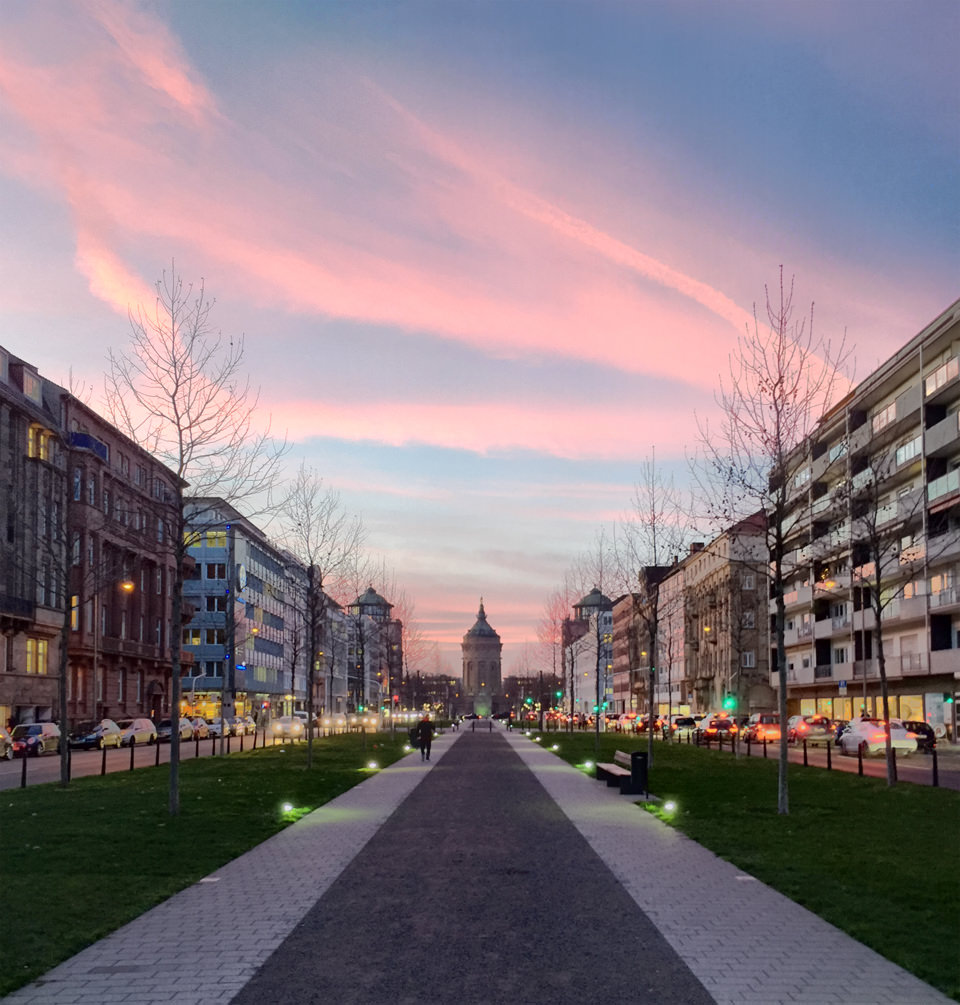
The sophisticated vividHDR in ProCamera now handles up to 5 photos. The HDR capture process uses multiple photos, shot with different exposure times, and combines them into an image with a higher dynamic range. As a result, there are more details in the highlights and the shadows. Increasing the number of photos from 3 to 5 can further raise the amount of detail – even in extreme lighting situations.
By default, the HDR camera automatically chooses between an auto-bracket of 3 or 5 photos based on the scene you’re shooting in. However, you can also determine whether to use 3 or 5 photos for yourself by toggling the “Auto” button in the control panel of the HDR mode. “Auto 3” means 3 photos are automatically taken, “Auto 5” accordingly means an auto-bracket of 5 photos.
And the best thing about it: Everybody can test the new HDR mode starting today! The update comes free of charge as part of v9.3 for all existing users of vividHDR in ProCamera – and for those of you, who haven’t already bought the In-App Purchase, we are still offering the free HDR test mode with permanently watermarked photos.
 Standard Photo
 HDR Photo
Export Menu
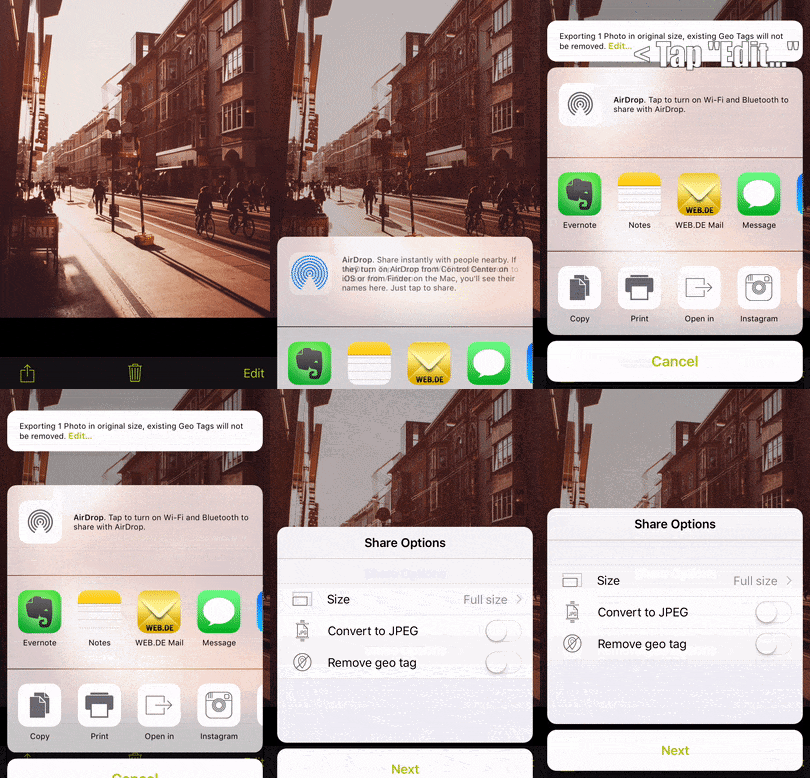
When sharing your photos and videos from your smartphone, you don’t always want to send full-sized versions and/or potential geotags. However, downsizing or cutting the original file isn’t a real option either. The new Export Menu brings a solution for all of that:
- Choose between different export file sizes (Original, Large, Medium, Small)
- Convert TIFF photos to JPEG
- Erase existing geotags
You open the Export Menu via long tap on the sharing icon (bottom left) or by tapping on the export summary box above the displayed apps and services you can share your files to.
Your export preferences are saved for your convenience. Each time a new photo/video is shared, the “next” button of the export settings menu must be pushed in order to apply your preferences. This prevents you from accidentally exporting your files with the wrong settings.
Advanced Today Widget
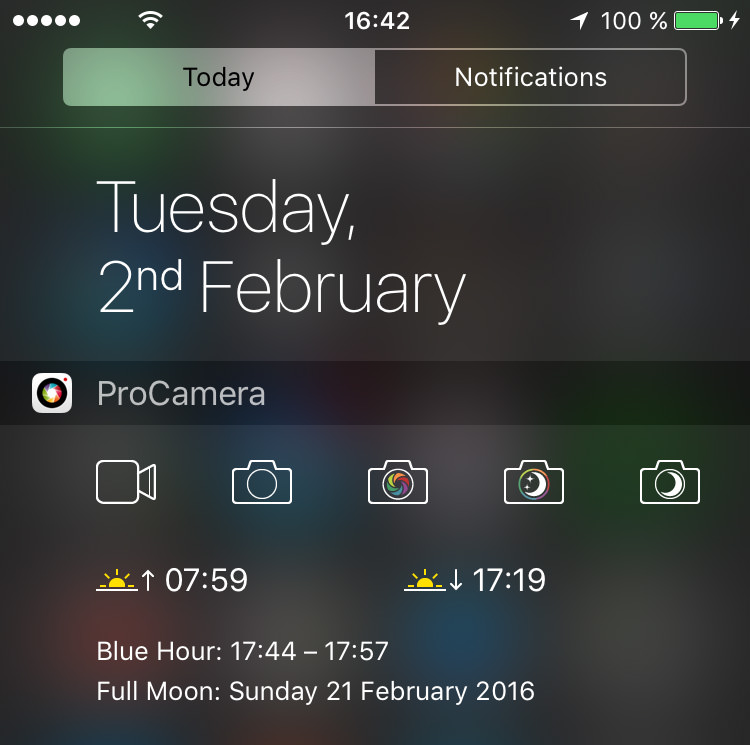
In addition to the sunset/sunrise time, which we introduced in the previous version, the ProCamera Today Widget is now able to tell you the next blue hour time frame as well as the next full moon. Never miss the best light again!
In case you want to keep the widget as small as possible, showing only the camera mode quick start icons, there is now a settings option for that (Settings > Today Widget). Individually hide/show the time displays at your convenience.
Extended Apple Watch Support
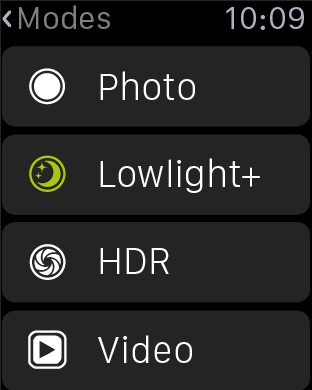
Use the Apple Watch to remotely start and stop video recordings, which is really great for sports and action videography. Just sit your iPhone on a flat surface, start the ProCamera Remote Trigger on the Apple Watch, jump on your skateboard, and start recording.
We also included a remote trigger for the LowLight Plus camera mode. Since you don’t have to touch your iPhone to take a photo with the remote trigger, it’s a good alternative to prevent even the slightest camera shake.
New Shutter Button Layout
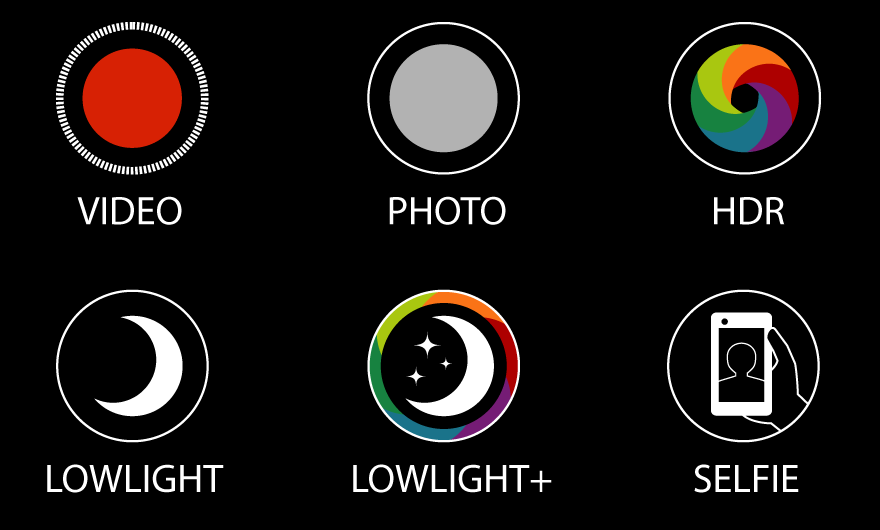
The shutter button layout has been optimized for the different screen sizes, and at the same time we are introducing a new and consistent shutter button design.
ProTimer Upgrade
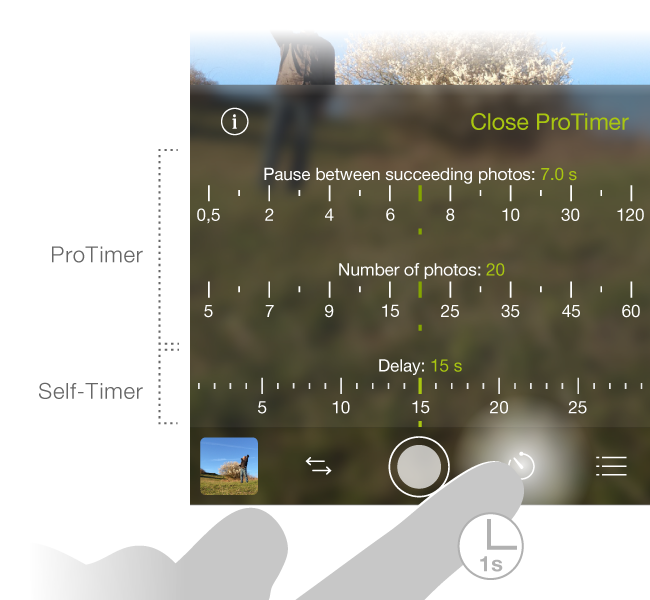
We boosted the maximum number of photos for our intervalometer. The ProTimer now handles up to 500 consecutive photos.
How to set up and start the ProTimer:
- Activate Self-Timer via Control Panel
- Long press the Second Trigger (right next to the main shutter button)
- Tap “Open ProTimer”
- Choose your intervalometer settings (delay before, pause between, total number of photos)
- Tap outside the box to hide the ProTimer settings
- Tap the Second Trigger to start the countdown for your photo series
As with all new iOS releases and updates, if you have any suggestions or find a bug, then please let us know via the in-app support or email us at [email protected].
If you’d like to support our development please help spread the word. Consider leaving a review in the App Store: https://review.procamera-app.com
Since we lose all previous App Store ratings once we release an update, every single new or refreshed review is much appreciated.